
Google Veo 3.1 in InVideo: How to Make Cinematic AI Videos (Guide)

AI video has moved fast. One week everyone talks about Sora 2. The next, social feeds are full of clips made with Google Veo 3.1.
Veo 3.1 is Google’s latest text-to-video model. It is built to generate smooth, cinematic clips with realistic motion, native audio, and far better control than older tools.
Now that it is integrated into InVideo, you can access that power in a simple video editor. Type a prompt, add a couple of reference images, and you are suddenly directing short, polished videos without a camera crew.
In this guide, you will see what Veo 3.1 actually brings to InVideo, how to use it step by step, where it shines for marketers and businesses, and a few best practices so your first clips look more “cinematic ad” than “AI slop”.
Chapters
Veo 3.1 in InVideo: key specs at a glance
| Capability | What it means | Why it matters |
|---|---|---|
| Text-to-video | Generate clips from a detailed prompt | Fast iteration for ads, promos, explainers |
| Image-to-video / reference images | Animate a still or guide scenes with images | Better consistency and brand control |
| First-to-last frame control | Start frame + end frame to guide the “in-between” | Great for reveals and before/after stories |
| Native audio | Audio generation aligned to the clip | Less “silent AI video” vibe, faster finishing |
| Quality / resolution options | Higher quality outputs (platform/tier dependent) | More professional-looking results |
| Aspect ratios | Landscape and vertical options (platform dependent) | Better fit for Shorts/Reels/TikTok |
Veo 3.1 vs Veo 3.1 Fast (which should you use?)
| Option | Best for | Trade-off |
|---|---|---|
| Veo 3.1 | Final outputs, hero shots, higher-quality ads | Slower iteration (typically) |
| Veo 3.1 Fast | Rapid testing, prompt iteration, rough drafts | May prioritize speed over max quality |
Simple workflow: use Fast to find the right prompt + framing, then switch to standard Veo 3.1 for your final renders.
So, what can Google Veo 3.1 do for you?
Google Veo 3.1 is an innovative AI model developed by Google DeepMind, designed to help users create stunning, realistic videos using only text and image inputs.
The best part? You can now access the Google Veo 3 AI video tool directly on Invideo, enabling you to produce professional-quality videos without the need for costly equipment or a film crew.
Let’s dive into how this powerful tool works and why it’s quickly becoming essential for anyone looking to create top-tier video content.
What is Google Veo 3.1?

Google Veo 3.1 is the latest and most advanced version of DeepMind’s text-to-video AI technology. It can generate entire cinematic shots from just two reference images, a starting frame, and an ending frame.
The AI fills in the gaps between the two, creating realistic motion, camera work, and lighting that make the video feel like it was shot by professionals.
Here’s what sets Veo 3.1 apart:
Stunning Video Quality: Veo 3.1 delivers 1080p video output that looks like it was filmed with high-end equipment. The AI focuses on creating polished, high-quality frames using natural lighting, soft focus, and a realistic depth of field that bring each scene to life.
Longer, Seamless Videos: Unlike older AI tools that struggled to generate long videos, Veo 3.1 can produce continuous clips up to 30 seconds. This is perfect for creating everything from promotional content to longer social media videos.
Total Creative Freedom: Veo 3.1 understands complex text prompts, meaning you can specify camera angles, lighting moods, and emotional tones. Whether you’re looking for slow-motion shots, time-lapses, or specific camera movements, you can get precise results, giving you complete creative control.
Object and Frame Referencing: With Veo 3.1, you can upload a starting and ending image to help the AI understand the flow of your video. You can also swap objects mid-video by uploading a reference image, and the AI will replace the object naturally throughout the video while maintaining smooth transitions.
Consistent Characters: One of the challenges with AI-generated content is maintaining consistent characters across frames. Veo 3.1 solves this by using multi-image referencing to ensure that faces, clothing, and expressions stay the same throughout the video, even when the scene changes.
How to Create Videos with Google Veo 3.1 on Invideo
Using Google Veo 3.1 on Invideo is straightforward. Here’s how you can get started:
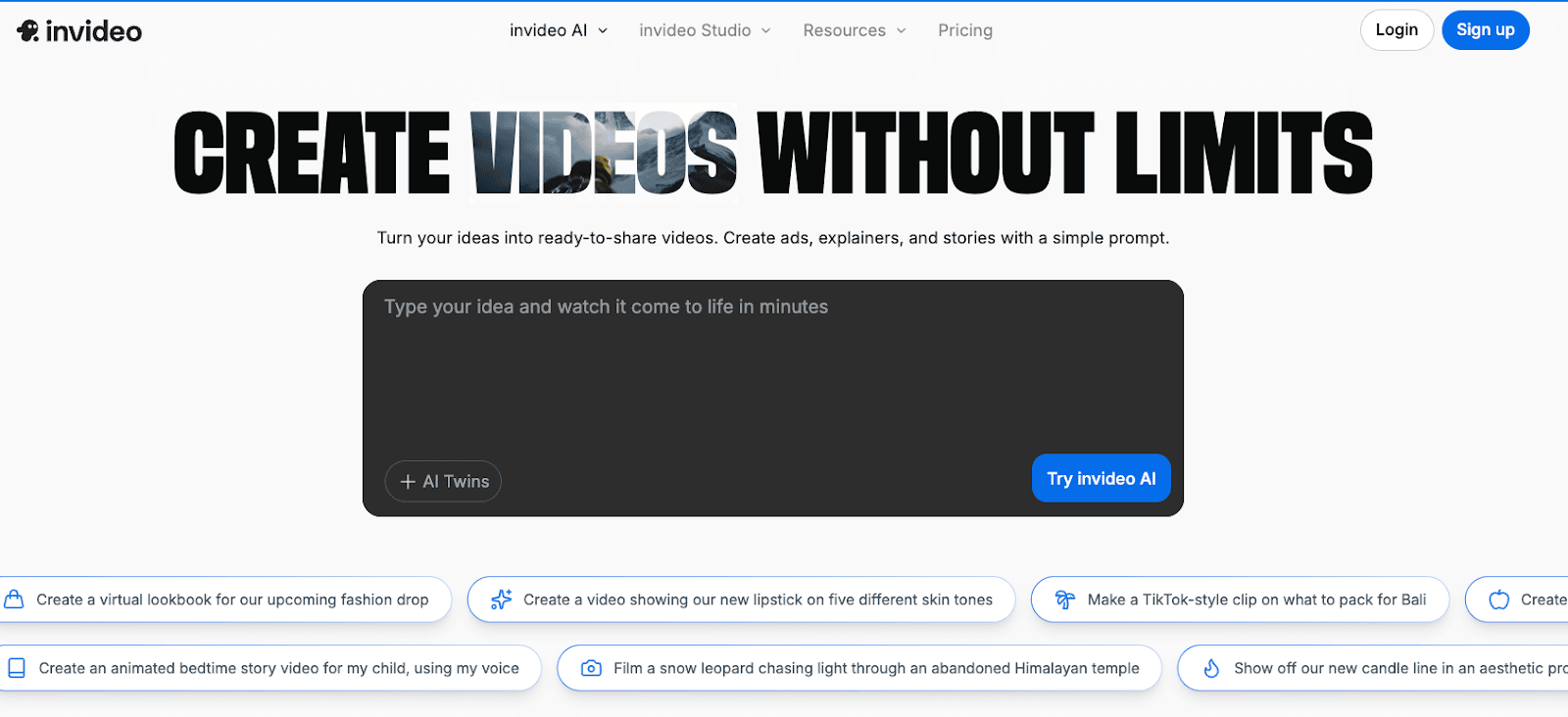
Step 1: Access the Google Veo 3.1 Tool
Log in to your Invideo account and find the “Google Veo 3.1” option under AI Tools. Here, you’ll be able to upload images and enter your video prompt.
Step 2: Upload Your Start and End Frames
For best results, upload an initial image (the starting frame) and a final image (the ending frame). This gives the AI a clear understanding of how the video should progress.


No images? You can still generate a video using just your descriptive prompt.
Step 3: Write Your Detailed Prompt
To get the most accurate video, provide as much detail as possible. Describe the scene, camera movement, lighting, characters, and the mood you want to create.
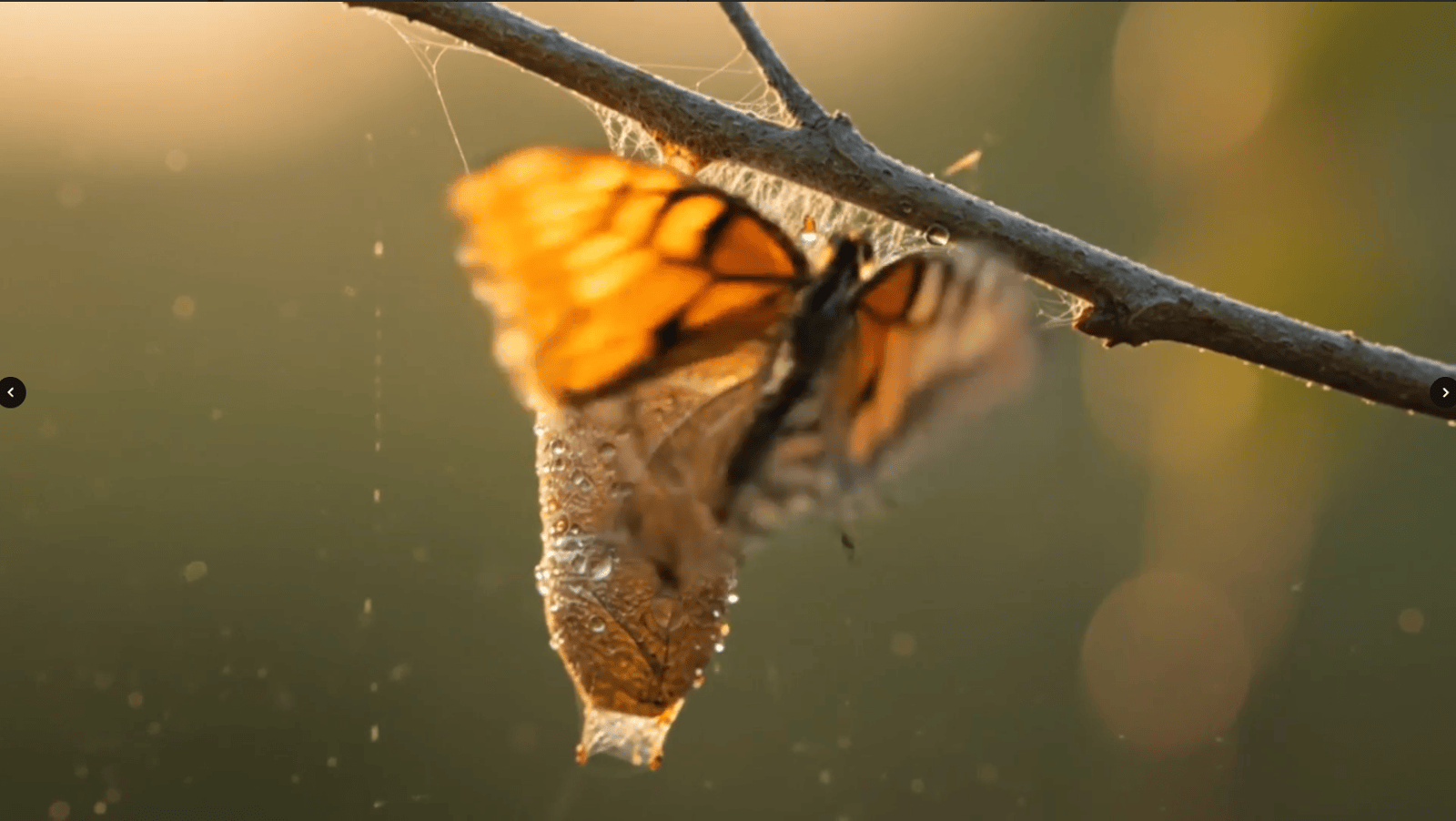
Example Prompt:
“Create a 10-second shot of a butterfly emerging from a cocoon in soft morning light. The butterfly slowly unfurls its wings as the sun rises, creating a serene, peaceful mood. The lighting is soft and warm, and the camera moves slowly in a circular motion around the butterfly. The color palette is rich in golden hues, with soft green bokeh in the background.”
Step 4: Generate the Video
Once you’ve uploaded your frames and written your prompt, simply click “Generate.” Invideo will process the inputs and create a cinematic video clip.
Step 5: Customize and Export
Once the video is ready, you can refine it using Invideo’s editor. Add text overlays, music, transitions, or trim clips as needed. When you’re satisfied with the result, export it in 1080p and share it wherever you like.
Example in Action: Creating a Before-and-After Effect
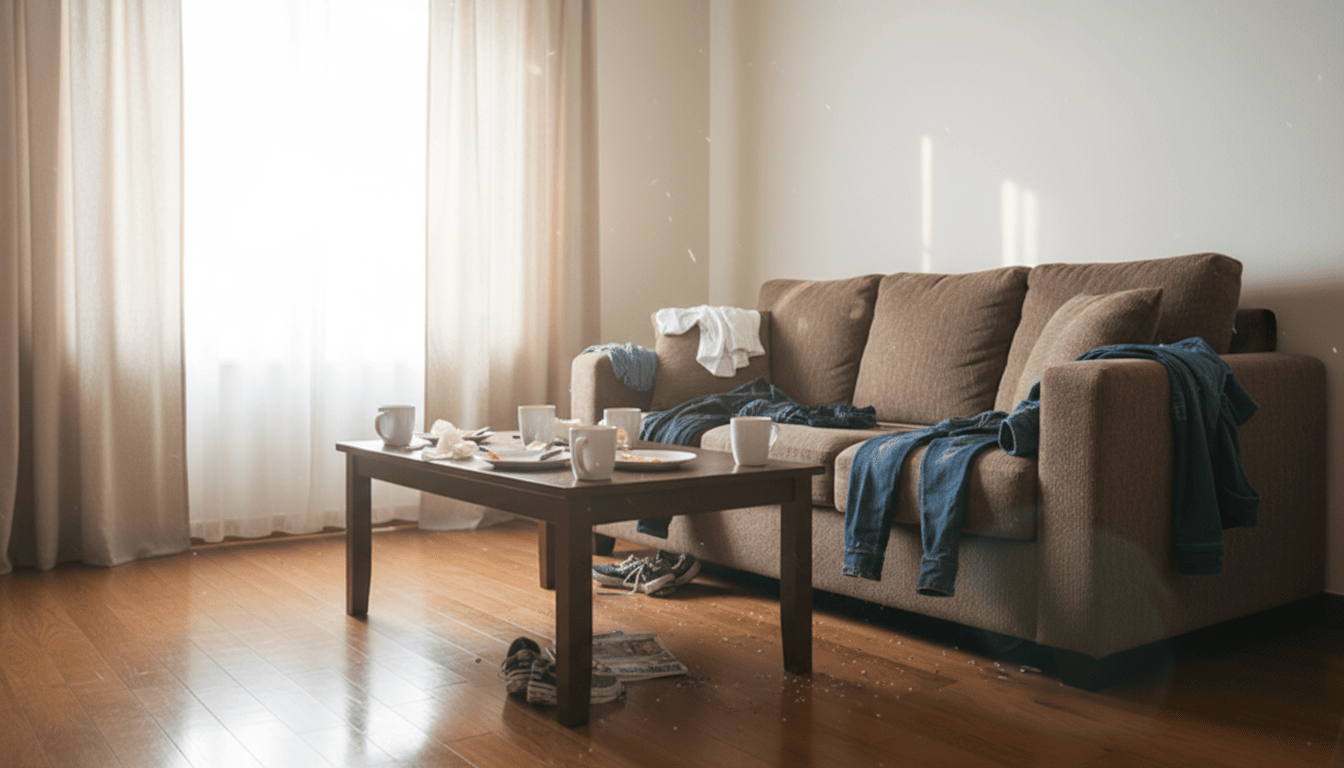
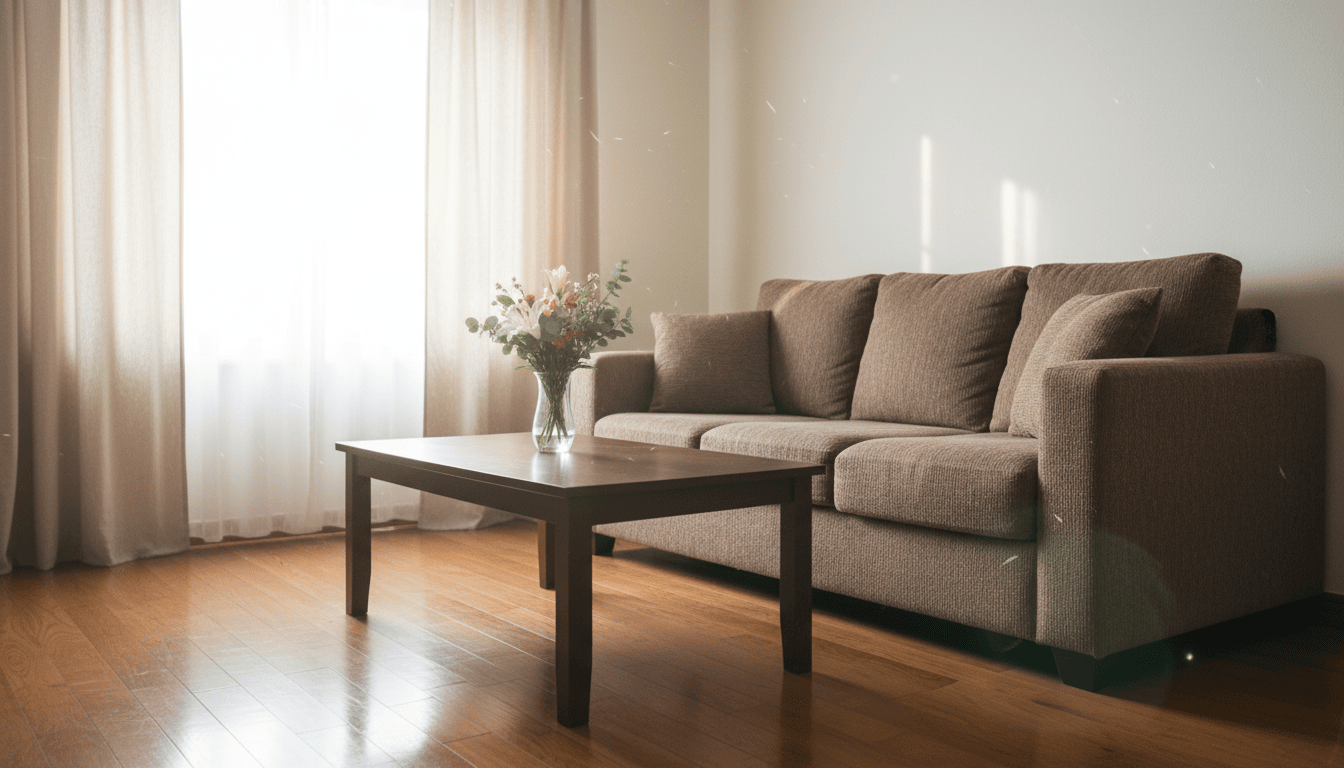
Suppose you run a home renovation business and want to create a time-lapse video showing the transformation of a living room.
First Frame: A cluttered, messy living room.
Last Frame: The same room, now tidy and beautifully decorated, with a vase of flowers on the coffee table.
Prompt:
“Create a time-lapse of a home renovation team transforming this messy living room into a clean, organized space. Show the team cleaning, arranging furniture, and finally adding a vase with fresh flowers to the center table. The camera should remain in one fixed position, capturing the entire transformation. The lighting is natural and bright, creating a productive and satisfying mood.”
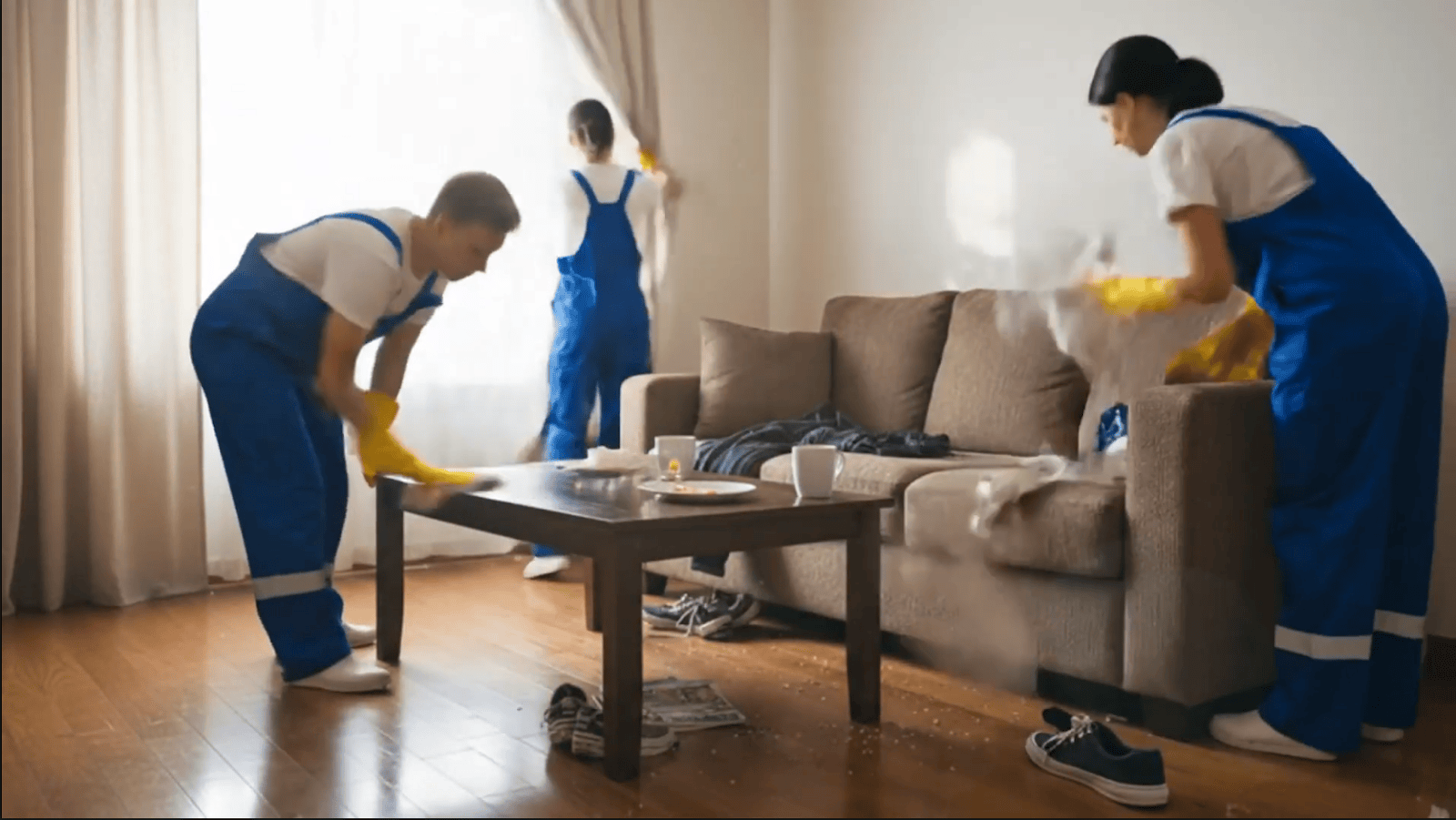
Veo 3.1 will generate a seamless time-lapse video that shows the transformation, with realistic lighting and motion, all without the need for any actual filming.
Why Veo 3.1 is a Breakthrough for Video Makers
Smooth Transitions and Object Referencing: With Veo 3.1, there’s no awkward morphing or inconsistent visuals. Videos flow smoothly from start to finish.
- Character Consistency: AI-generated characters now maintain their faces, clothes, and expressions, making them appear realistic throughout the video.
- Natural Motion: The AI accurately simulates the movement of people and objects, making the video feel lifelike.
- Integrated Audio: Veo 3.1 also includes ambient sounds and audio, enhancing the immersive experience.
Who Can Benefit from Google Veo 3.1 on Invideo?
- Marketers and Advertisers: Quickly produce compelling ads, product demos, and social media content.
- Content Creators: Whether you’re on YouTube, Instagram, TikTok, or any other platform, Veo 3.1 helps you create engaging content with ease.
- Real Estate Agents: Showcase properties or before-and-after transformations professionally.
- Event Planners: Create exciting teasers, highlight reels, and invitations.
- Filmmakers and Storytellers: Create cinematic narratives with consistent characters and motion.
- Educators and NGOs: Produce impactful educational content that’s visually engaging.
What Is Google Veo 3.1, In Plain Language?
Google Veo 3.1 is a generative video model that turns text and images into short, high-fidelity clips with built-in sound. It runs behind the scenes in tools like Gemini, Flow, Vertex AI and now InVideo.
Key capabilities, based on Google’s docs and early coverage:
- Text to video with cinematic camera moves and realistic motion
- Image to video, where you animate a still or connect a start frame and end frame
- “Ingredients to video” style workflows that build scenes from a few reference images
- Native audio and ambient sound paired to the visuals
- Stronger prompt adherence and higher perceived realism than earlier versions
Most official tools generate clips of around 8 seconds by default, with some environments and previews allowing longer sequences up to roughly a minute. Exact limits depend on where you use Veo 3.1 and which tier you are on.
Why Veo 3.1 Inside InVideo Matters
You could already access Veo through Google’s own products, but InVideo changes how practical it feels for everyday creators.
According to InVideo’s own explainer and early write-ups, the integration gives you:
- A familiar video editing interface instead of raw API calls
- Direct access to Veo 2, Veo 3 and Veo 3.1 from one place
- Timeline tools, stock, and brand assets alongside AI shots
- Export-ready formats for social, ads, explainers, and promos
In short, you focus on concepts, timing, and storytelling, while Veo 3.1 handles the heavy lifting of visuals and motion.
Core Veo 3.1 Features You Get In InVideo
Different platforms expose slightly different knobs, but these are the headline features InVideo highlights.
1. First-to-Last Frame Control
You can upload a starting frame and an ending frame. Veo 3.1 then animates smooth motion between them, filling in the middle with coherent action. Great for:
- Before-and-after transformations
- Product reveals
- Logo or text transitions
2. Object Referencing
InVideo’s implementation lets you swap specific objects throughout a clip with reference images. Think:
- Changing a product color or model
- Swapping props in a scene
- Updating branding without reshooting everything
3. Character Consistency
One of the biggest complaints about AI video has been “my character’s face keeps changing.”
Veo 3.1 significantly improves character consistency across a shot, especially when you base the character on a clear reference image or uploaded clip.
4. High-Quality, 1080p Output
Veo 3.1 supports high-definition output and maintains clean details, natural lighting, and cinematic depth of field across frames.
5. Native Audio And Ambient Sound
The model can generate audio that matches the clip, such as ambient noise and simple soundscapes, without needing a separate sound engine.
You can still layer your own music or voiceover in InVideo, but the built-in audio already makes clips feel more alive.
Step-By-Step: How To Use Veo 3.1 In InVideo
Exact UI labels may change, but the workflow usually looks like this:
Start a new project
Choose the aspect ratio you need, such as 16:9 for YouTube or 9:16 for Reels and TikTok.
Select Google Veo 3.1 as your generator
In the AI video section, pick Veo 3.1 or Veo 3.1 Fast depending on whether you want maximum quality or faster iteration.
Add your “ingredients”
Type a detailed prompt describing the scene, style, and motion.
Optionally upload:
- A start frame
- An end frame
- Reference images or a character shot
Generate your first pass
Let Veo 3.1 produce a short clip.
Watch it several times and note what works and what feels off.
Refine the prompt and frames
Adjust camera direction, pacing, lighting, or character details.
Swap or tweak reference images if needed.
Edit in the InVideo timeline
Combine multiple Veo clips into a full ad or explainer.
Add text, transitions, brand elements, music, or a recorded voiceover.
Export and test
Export in the resolution and format you need.
Test on target platforms to check how it looks and sounds on mobile.
Use Cases: What To Actually Make With Veo 3.1 + InVideo
Veo 3.1 is not just for “AI art videos”. InVideo’s examples and early user experiments point to some very practical marketing uses.
You can create:
Product demo clips
Show your product in action, in different environments, or at various scales without expensive shoots.
Short social ads
Turn a script into a 6–15 second vertical video with movement, character shots, and call-to-action text.
UGC-style creatives
Combine AI-generated scenarios with real testimonials, screenshots, or text overlays.
Brand promos and launch teasers
Use first-to-last frame control for reveal sequences, logo animations, or story-driven intros.
Real estate tours and local promos
Animate stylized walk-throughs of locations, then mix in real photos, maps, or data.
Explainers and educational snippets
Pair narration or captions with abstract visuals, metaphors, and scene transitions that match your message.
Prompting Tips For Better Veo 3.1 Results

You do not need to write a novel, but you do need more than “make cool video of my app”. Based on Google’s guidance and creator breakdowns, these prompt habits help a lot.
Describe the camera, not just the subject
“Slow dolly-in on a woman using a fitness app at sunrise, soft handheld feel” works better than “woman using app”.
Set the visual style clearly
Mention lighting, color palette, and format, for example: “warm golden-hour light, cinematic 35mm look, shallow depth of field”.
Explain motion and pacing
“Start wide, then slowly push in to a close-up of the product” gives Veo a clear path to follow.
Tie prompts to your frames
If you upload a start and end frame, tell Veo what should change between them, not just what each frame looks like.
Iterate in small steps
Change one or two details at a time, regenerate, and compare. This makes it easier to “steer” the model.
If you use StoryLab.ai alongside InVideo, you can generate several prompt variants, ad scripts, or hook lines first, then feed the strongest ones into Veo 3.1. That way you test concepts, not just visuals.
Limitations And Things To Watch Out For
Veo 3.1 is impressive, but it is not magic. A few practical constraints to keep in mind:
Clip length
Most interfaces keep Veo 3.1 clips relatively short, which is perfect for ads and social but not full documentaries yet.
Voice control
Native audio focuses on ambience and simple soundscapes. If you want specific voices, accents, or scripts, you will still add your own VO.
Fine-grained edits
While object and frame referencing are strong in InVideo, pixel-perfect control over every detail is still closer to VFX territory than everyday AI.
Ethics and authenticity
Hyper-realistic AI video raises obvious questions around deepfakes and trust. Some publishers already stress how hard these clips are to distinguish from live-action footage. Use branding, disclaimers, and responsible policies where appropriate.
How StoryLab.ai Fits Into Your Veo 3.1 Workflow
Veo 3.1 and InVideo help you with production. StoryLab.ai can help you with ideas, scripts, and strategy before you ever hit “generate”.
You can use StoryLab.ai to:
- Brainstorm concepts and hooks for short ads or promos
- Turn a campaign idea into a storyboard outline
- Draft VO scripts, captions, and on-screen text for your Veo clips
- Repurpose one high-performing Veo ad into multiple variations for different audiences and platforms
The result is a smoother end-to-end pipeline: idea → script → Veo 3.1 visuals → edited video → repurposed content.
What to make with Veo 3.1 + InVideo (by goal)
| Goal | What to create | Best Veo feature | Prompt tip |
|---|---|---|---|
| Sell a product | 6–15s UGC-style ad | Reference images + consistent subject | Specify camera + lighting + “handheld UGC” vibe |
| Show transformation | Before/after reveal | First-to-last frame control | Describe the “transition moment” clearly |
| Explain a service | Mini explainer with 3 scenes | Multiple short clips + timeline editing | Write 3 prompts: problem → solution → proof |
| Build brand | Cinematic brand bumper | Style control + motion cues | Use “slow dolly,” “soft DOF,” “premium lighting” |
| Real estate | Room-to-room walkthrough feel | Image-to-video + motion direction | Call out “smooth gimbal movement” |
Prompt pack: 12 proven Veo 3.1 prompts (copy/paste)
| Use case | Prompt template |
|---|---|
| UGC product ad | Create a vertical 9:16, 8–12 second UGC-style clip. Handheld smartphone feel. Natural indoor lighting. A person holds and uses [PRODUCT]. Subtle camera sway. Add realistic ambient room sound. Background softly blurred. End with a clear product close-up. |
| Luxury brand shot | 16:9 cinematic product shot, 8 seconds. Slow dolly-in. Premium studio lighting with soft reflections. Black background with faint gradient. The [PRODUCT] rotates slightly. Clean, elegant mood. Subtle ambient sound. |
| Before/after | Create an 8–10 second transformation clip between the start frame and end frame. Smooth motion, no morphing artifacts. Keep the room layout consistent. Camera moves slowly forward. Emphasize realistic lighting continuity. |
| App promo | Vertical 9:16, 8 seconds. Modern, minimal style. Show a hand using a phone with [APP] on screen. Clean desk setup, warm light. Smooth push-in. End on the app’s key screen. Subtle ambient sound. |
| Food close-up | Macro close-up of [FOOD] being plated. Soft natural daylight. Slow motion drips/steam. Shallow depth of field. Cinematic color grading. Realistic kitchen ambient sound. |
| Founder story (b-roll) | Cinematic b-roll sequence, 8 seconds. A founder walking into an office, confident mood. Soft morning light. Slow tracking shot from behind, then slight reveal of face. Realistic ambient sound. |
Tip: Treat prompts like a production brief: camera + lighting + subject + motion + mood + environment.
Common Veo 3.1 mistakes (and how to fix them)
| Problem | What causes it | Fix |
|---|---|---|
| Looks like generic AI video | No camera direction or lighting detail | Add camera movement + lighting + mood + lens cues |
| Character changes mid-clip | Weak/unclear reference images | Use clearer reference images and describe consistent features |
| Weird transitions | Start/end frames mismatch too hard | Choose frames with similar composition and lighting |
| Text looks broken | AI video struggles with readable text | Add text later in InVideo instead of generating it |
| Audio feels off | Ambient sound mismatch | Mute and add music/VO in InVideo timeline |
Veo 3.1 vs other AI video tools (quick comparison)
| Tool | Best at | Why creators choose it | Watch-outs |
|---|---|---|---|
| Google Veo 3.1 | Cinematic realism + control + audio | Strong quality, image guidance, and expanding Google ecosystem | Limits vary by platform/plan |
| InVideo + Veo 3.1 | End-to-end creation | Generator + timeline editing + export in one place | Some features depend on InVideo plan |
| Other AI video tools | Different strengths by product | Some excel at editing, others at stylization | Consistency and text rendering can still be tricky |
Final Thoughts
AI video creation has come a long way, and Invideo’s partnership with Google Veo 3.1 makes it easier than ever to create high-quality, professional videos.
Whether you’re creating content for marketing, social media, or education, Invideo gives you the tools to transform your ideas into reality without needing a film crew or expensive equipment.
Ready to start creating? Use Google Veo 3.1 directly on Invideo and bring your ideas to life today!
FAQs
Is Veo 3.1 available for free in InVideo?
Availability and limits depend on InVideo’s current plans and your region. Check the Veo 3.1 page inside InVideo for the latest access details.
What is the best prompt length for Veo 3.1?
Aim for a “mini production brief”: subject, environment, lighting, camera movement, mood, and what should happen in the clip. More detail usually helps.
Can Veo 3.1 create vertical videos for Shorts/Reels?
Veo 3.1 supports vertical creation in some Google experiences, and many workflows support 9:16 formats depending on the tool you use.
How do I keep characters consistent across multiple clips?
Use the same reference images, describe the character consistently, and keep lighting/wardrobe stable. Generate a few variations and pick the most consistent one.
Should I generate text inside Veo 3.1 videos?
Usually no. Add text overlays in InVideo so your typography stays clean and readable.
What makes Veo 3.1 different from earlier Veo versions in InVideo?
Veo 3.1 focuses on higher realism, better prompt adherence, native audio, and more narrative control than older releases. InVideo surfaces that through features like first-to-last frame control, object referencing, and improved character consistency, all inside a familiar editor.
Do I need any technical background to use Veo 3.1 in InVideo?
No. You work with text prompts, reference images, and a drag-and-drop editor. The model runs behind the scenes. A basic understanding of storytelling, timing, and visual style helps more than coding skills.
How long can Veo 3.1 clips be in InVideo?
Most official Veo 3.1 endpoints focus on short clips around 8 seconds, though some environments and tools experiment with longer durations for specific workflows. InVideo’s marketing highlights short-form content like ads, promos, and social clips, which fit well within those limits.
Can I use my own voice or music with Veo 3.1 clips?
Yes. Veo 3.1 can generate its own ambient sound, but InVideo lets you mute or layer it with your own soundtrack, voiceovers, or sound effects, just like any other video project.
What are some smart first projects to try?
Good starter projects include a 10–15 second product intro, a vertical ad for one social channel, or a simple before-and-after transformation using first and last frames. These are short, contain clear visual stories, and let you learn how Veo 3.1 interprets prompts before scaling up.
How can I make my Veo 3.1 videos stand out from all the other AI clips?
Focus on the idea and script, not just the visuals. Use StoryLab.ai to test hooks, angles, and story structures. Then use Veo 3.1 for visuals that support that story instead of letting the model decide everything. Strong narrative plus strong visuals is what cuts through the feed.
What is Google Veo 3.1, and how does it work on Invideo?
Google Veo 3.1 is an AI model that generates high-quality cinematic videos from text prompts and reference images. Invideo allows you to easily use this tool by uploading images and writing prompts to generate your video.
Can I replace objects in my videos?
Yes! Veo 3.1 lets you upload a reference image of a new object, and the AI will replace it naturally throughout the video.
How does character consistency work?
Veo 3.1 ensures that characters stay consistent throughout the video, preserving their facial features, clothing, and expressions using advanced referencing technology.
Do I need technical skills to use Google Veo 3.1?
No. Invideo makes it simple to use Google Veo 3.1 with an intuitive platform. Just upload your images, write your prompt, and let the AI do the rest.
Other Interesting Articles
- AI LinkedIn Post Generator
- Gardening YouTube Video Idea Examples
- AI Agents for Gardening Companies
- Top AI Art Styles
- Pest Control YouTube Video Idea Examples
- Automotive Social Media Content Ideas
- Plumber YouTube Video Idea Examples
- AI Agents for Pest Control Companies
- Electrician YouTube Video Idea Examples
- How Pest Control Companies Can Get More Leads
- AI Google Ads for Home Services
- 60-Second Training Videos Are the New Corporate Standard
- Cybersecurity PR Pricing: Retainers, Deliverables & ROI
- Best AI Tools for Product Consistency in E-Commerce Video
Master the Art of Video Marketing
AI-Powered Tools to Ideate, Optimize, and Amplify!
- Spark Creativity: Unleash the most effective video ideas, scripts, and engaging hooks with our AI Generators.
- Optimize Instantly: Elevate your YouTube presence by optimizing video Titles, Descriptions, and Tags in seconds.
- Amplify Your Reach: Effortlessly craft social media, email, and ad copy to maximize your video’s impact.