
Free eBook Cover Maker [Unlimited – No Signup]
Your eBook may be packed with useful ideas, but the cover is what readers notice first.
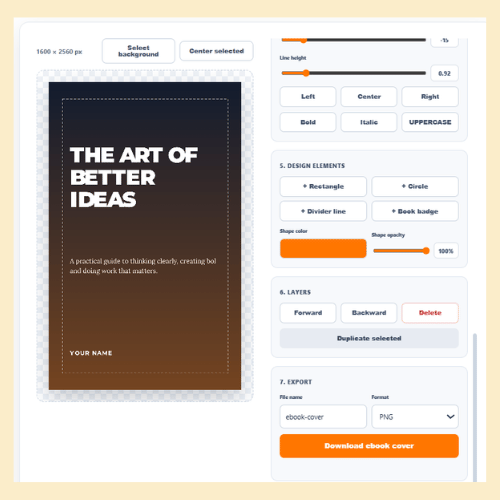
Use StoryLab.ai’s free eBook Cover Maker to create a polished cover without complicated design software. Upload your own background image or start with a gradient, add your title, subtitle and author name, and customize the typography until everything feels right.
You can create covers for lead magnets, guides, reports, workbooks, Kindle eBooks and other digital publications directly in your browser.
No sign-up required. Start designing and download your finished cover when you are ready.
Create Your eBook Cover for Free Below
Choose a cover size, select a layout and start customizing. Double-click text on the cover to edit it, or use the controls to add your own title, subtitle, author name, background and design elements.
Chapters
Book cover does more than make the document look finished. It gives potential readers an immediate reason to stop, understand what the eBook is about and become curious about what is inside.
That matters whether you are creating:
- A downloadable lead magnet
- A business guide
- A marketing report
- A training workbook
- A Kindle eBook
- A recipe book
- A coaching resource
- An industry research report
- A collection of stories
- An educational PDF
The StoryLab.ai eBook Cover Maker gives you the flexibility to build a cover around your topic, audience and brand.
Upload an image, reposition it, adjust the contrast, add an overlay and place your text where it will be easy to read. You can also use a simple color or gradient background when a clean, minimal cover suits the subject better.
What Can You Do With the Free eBook Cover Maker?
Choose a Book-Friendly Cover Size
Start with a portrait format designed for digital books, guides and downloadable resources. Different size presets make it easier to create covers for standard eBooks, taller digital publications and square audiobook artwork.
You can also use the safe-area guide to keep important text away from the edges of the design.
Upload Your Own Background Image
Use a photograph, illustration, branded graphic or AI-generated image as the background of your cover.
After uploading an image, you can:
- Reposition it inside the cover
- Zoom in or out
- Add contrast
- Apply visual filters
- Darken the background
- Add a colored or gradient overlay
These controls help you create enough contrast between the background and your title.
Need an original visual first? Use StoryLab.ai’s AI Text-to-Image Generator to create image ideas from a written prompt. You can then upload your chosen visual to the eBook Cover Maker.
Add Your Title, Subtitle and Author Name
A book cover needs a clear visual hierarchy.
Your title should normally be the most noticeable text. The subtitle can explain the promise or subject of the eBook, while the author name, company name or brand can appear in a supporting position.
The editor lets you add and customize multiple text boxes so you are not locked into one fixed layout.
Customize Fonts and Text Styles
Adjust the font family, font size, alignment, letter spacing, line height and color of your text.
You can also add effects such as shadows, backgrounds and outlines to improve readability when text is placed over a detailed image.
Add Shapes, Dividers and Badges
Simple design elements can help organize your cover.
Use rectangles, circles, lines and badges to:
- Separate the title from the subtitle
- Highlight a new edition
- Add a short benefit
- Display a category or series name
- Create a branded text area
- Add visual structure to a minimal cover
Manage Every Design Layer
Select individual elements and move them forward or backward. Duplicate text or shapes, center objects and delete anything you no longer need.
This gives you more control over the final composition without requiring professional graphic design software.
Download Your Finished Cover
Once your cover is ready, download it as a high-resolution PNG or JPG image.
The safe-area guide is automatically excluded from the downloaded file, so only your finished design appears in the export.
How to Make an eBook Cover Online
1. Choose Your Cover Format
Select the format that best matches where your eBook will be published or promoted.
For a digital guide or lead magnet, a standard portrait layout will usually work well. For a specific publishing platform, check that platform’s latest cover requirements before exporting your final design.
2. Select a Cover Layout
Choose a layout based on the type of eBook you are creating.
A bold layout may suit a business guide or thriller, while a restrained layout may work better for a professional report. The layout gives you a starting point, but you can move and edit every element.
3. Add a Background
Upload your own image or use a color or gradient background.
Make sure the background supports the subject of the eBook instead of distracting from the title. One strong visual is usually more effective than several unrelated images competing for attention.
4. Enter Your eBook Title and Subtitle
Add a clear title that tells readers what they will learn, experience or achieve.
Your subtitle can add context, explain the audience or make the benefit more specific.
Still working on the right title? Use StoryLab.ai’s AI eBook Title Generator to generate title and subtitle ideas before adding them to your cover.
5. Add Your Name or Brand
Include the author name, company name or brand responsible for the eBook.
Keep it visible, but do not let it compete with the main title unless the author or company name is the primary selling point.
6. Improve the Readability
Check the contrast between the text and background.
You can darken the image, add an overlay, use a text shadow or place the title inside a simple colored shape. The title should remain easy to read even when the cover is displayed as a small thumbnail.
7. Download and Review Your Cover
Download your cover and view it at different sizes.
Check that:
- The title is readable
- The text is not too close to the edges
- The image is sharp
- The author name is spelled correctly
- The cover matches the subject
- The most important elements are still clear at thumbnail size
eBook Cover Design Tips
Make the Title Easy to Read
Readers should not have to study your cover to understand the title.
Use a font size that is large enough to remain visible when the cover is shown inside an email, social media post, search result or online bookstore.
Decorative fonts can work for certain genres, but clarity should come first.
Build a Clear Text Hierarchy
Your title, subtitle and author name should not all have the same visual weight.
A simple hierarchy could be:
- Main title
- Key benefit or subtitle
- Author or company name
- Supporting badge or series name
This helps readers process the cover quickly.
Match the Design to the Subject
The cover should give readers clues about what kind of content they are about to open.
A practical business guide may benefit from bold typography and a clean layout. A fantasy story may use atmospheric artwork and more expressive lettering. A research report may look stronger with a structured, restrained design.
Do not copy another author’s cover. Instead, study the visual conventions of your category and create something that feels familiar without becoming generic.
Use One Strong Focal Point
A cover does not need to explain every chapter.
Choose one strong image, visual symbol, word or benefit that represents the central idea. Too many competing elements can make the cover difficult to understand.
Leave Enough Empty Space
Empty space gives your title room to breathe.
You do not need to fill every corner of the cover with text, shapes, badges and images. A simpler design often feels more deliberate and professional.
Check the Thumbnail Version
Many people will first encounter your eBook as a small image.
Zoom out or reduce the size of the downloaded cover. The title and main visual should still be recognizable. Small subtitles and minor details can become less visible, but the central message should remain clear.
Use High-Quality Images
Avoid stretching small images to fill a large cover because they may become blurry or pixelated.
Start with the highest-quality image available and download your cover at a suitable resolution for the platform on which you plan to publish it.
Also make sure you have permission to use every photograph, illustration, logo, font or graphic included in the final design.
Create the Rest of Your eBook With StoryLab.ai
A strong cover is one part of a successful eBook. You still need the right idea, title, structure, chapters and promotional content.
StoryLab.ai provides tools for each stage of that workflow.
Find a Strong eBook Topic
Use the AI eBook Idea Generator to brainstorm useful topics based on your niche, audience and goals.
Generate several options before committing to a subject. The best idea is usually one that connects a real audience problem with knowledge or experience you can genuinely contribute.
Develop the Title
Use the AI eBook Title Generator to explore different title and subtitle combinations.
Generate several directions, combine the strongest ideas and choose a title that is clear enough to understand but interesting enough to remember.
Create the Structure
Use the AI eBook Outline Generator to turn your topic into a logical collection of chapters, sections and key points.
A good outline helps prevent repetition and ensures that each chapter moves the reader closer to the promised outcome.
Write Your First Draft
Use StoryLab.ai’s AI eBook Generator to turn your idea into an initial outline, chapter structure and draft.
You can also use the AI eBook Chapter Generator when you want to develop one chapter at a time.
Treat AI-generated text as a starting point. Add your own examples, opinions, research, screenshots, stories and experience before publishing.
Create Original Visual Ideas
Use the AI Text-to-Image Generator to generate visual concepts for your cover.
Describe the subject, visual style, composition, lighting and mood you want. Generate several options, refine the best direction and upload your chosen image to the eBook Cover Maker.
Promote Your Finished eBook
Once your eBook is ready, use the AI eBook Promotion Generator to create ideas for launch emails, social media posts, promotional hooks and follow-up content.
You can also read our guide on how to write and format an eBook with AI for more help completing your publication.
From eBook Idea to Finished Cover
You do not need to complete every part of your eBook in one sitting.
Start with the next useful step:
- Generate a few promising ideas
- Choose the strongest topic
- Create a clear outline
- Draft one chapter at a time
- Add your own insight and examples
- Design a cover that communicates the value
- Publish and promote the finished eBook
StoryLab.ai helps you move through those stages without starting from an empty page every time.
Create the content with the AI eBook tools, create the visuals with the AI Text-to-Image Generator and bring everything together with the free eBook Cover Maker.
FAQ
Is this Social Media Post Maker free?
Yes. You can use this Social Media Post Maker for free and download your design without signing up.
Do I need to create an account?
No. The design tool on this page can be used without sign-up. Just upload an image, create your post, and download it.
What social media platforms can I create posts for?
You can create posts for Instagram, LinkedIn, X, Pinterest, Stories, Reels, and other platforms that use image-based content.
Can I upload my own image?
Yes. You can upload your own image and use it as the background for your social media post.
Can I add text to my social media post?
Yes. You can add text boxes, choose fonts, change colors, apply text styles, and position the text on your image.
Can I create captions for my post with AI?
Yes. After creating your design, you can use StoryLab.ai’s AI Social Media Caption Generator to write captions for your post.
Can I generate social media post ideas with AI?
Yes. You can use StoryLab.ai’s AI Social Media Content Idea Generator to brainstorm fresh post ideas for different topics, platforms, and audiences.
Can I create AI images for social media?
Yes. You can use StoryLab.ai’s AI Social Media Image Generator to create visual ideas for your social media content.
Can I repurpose one social media post into more posts?
Yes. You can use StoryLab.ai’s AI Social Media Repurposing Generator to turn one post into multiple versions for different platforms or angles.
What makes a good social media post?
A good social media post has a clear message, readable design, strong visual focus, and a caption that gives context or encourages action.
Other Interesting Articles
- AI LinkedIn Post Generator
- Gardening YouTube Video Idea Examples
- AI Agents for Gardening Companies
- Top AI Art Styles
- Pest Control YouTube Video Idea Examples
- Automotive Social Media Content Ideas
- Plumber YouTube Video Idea Examples
- AI Agents for Pest Control Companies
- Electrician YouTube Video Idea Examples
- How Pest Control Companies Can Get More Leads
- AI Google Ads for Home Services
- 60-Second Training Videos Are the New Corporate Standard
- Cybersecurity PR Pricing: Retainers, Deliverables & ROI
- Best AI Tools for Product Consistency in E-Commerce Video
Master the Art of Video Marketing
AI-Powered Tools to Ideate, Optimize, and Amplify!
- Spark Creativity: Unleash the most effective video ideas, scripts, and engaging hooks with our AI Generators.
- Optimize Instantly: Elevate your YouTube presence by optimizing video Titles, Descriptions, and Tags in seconds.
- Amplify Your Reach: Effortlessly craft social media, email, and ad copy to maximize your video’s impact.