
Free YouTube Thumbnail Maker – Create Clickable Thumbnails
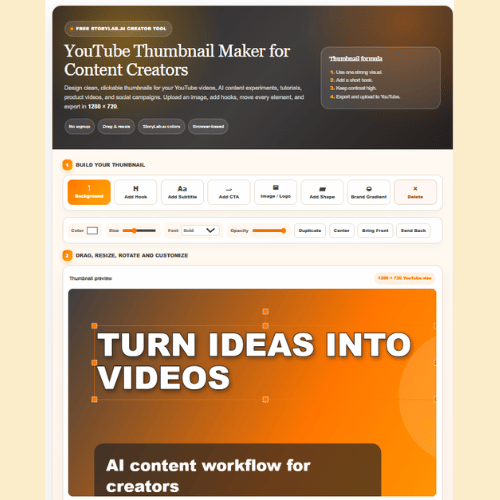
Create a clean, clickable YouTube thumbnail directly in your browser.
Upload your background image, add a bold hook, include a subtitle or CTA, drag elements into place, and download your thumbnail in the right YouTube size.
- No complicated design software.
- No signup needed for the thumbnail maker.
- No messing around with canvas sizes.
A strong thumbnail can help your video stand out in YouTube search, suggested videos, playlists, social feeds, and embedded blog posts. But it does not need to be complicated.
The best thumbnails usually have:
- One clear visual
- One strong message
- Easy-to-read text
- Strong contrast
- Enough empty space
- A clear connection to the video topic
Use the free thumbnail maker below to create your design. Then use StoryLab.ai’s other tools to write a better video title, description, script, hook, and promotion copy.
Use the free tool below to design your YouTube thumbnail. Upload an image, add your hook, move every element, and download your thumbnail as a 1280 × 720 JPEG.
YouTube Thumbnail Maker for Content Creators
Design clean, clickable thumbnails for your YouTube videos, AI content experiments, tutorials, product videos, and social campaigns. Upload an image, add hooks, move every element, and export in 1280 × 720.
Thumbnail formula
- Use one strong visual.
- Add a short hook.
- Keep contrast high.
- Export and upload to YouTube.
Ready to publish?
Download your thumbnail as a YouTube-ready JPEG.
Chapters
Make the Rest of Your YouTube Video Better Too
A thumbnail gets attention.
But the title, hook, script, description, and promotion plan help people decide whether to click, watch, and come back for more.
After creating your thumbnail, you can use these StoryLab.ai tools to improve the rest of your video workflow:
- AI YouTube Title Generator – create stronger YouTube titles for your video idea.
- AI YouTube Video Script Generator – turn your topic into a clearer video script.
- AI YouTube Video SEO Generator – generate YouTube titles, descriptions, and tags.
- AI Social Media Video Script Generator – create scripts for Reels, TikTok, Shorts, and social clips.
- AI Video Promotion Generator – create social posts, emails, and promo copy for your video.
- AI Content Idea Generator – find new video, blog, and social media content ideas.
- AI Social Media Caption Generator – write captions to promote your video on social media.
- AI Video Marketing Generators – explore more AI tools for video scripts, hooks, ads, and promotion.
Why Use a YouTube Thumbnail Maker?
Your thumbnail is often the first thing people see before watching your video.
It appears next to your title, competes with other videos, and helps viewers quickly understand what your content is about.
A good YouTube thumbnail should not only look nice. It should support the video idea.
For example:
| Video type | Thumbnail goal | Example thumbnail text |
|---|---|---|
| Tutorial | Show the result or main benefit | Do This First |
| Product review | Create curiosity around the verdict | Worth It? |
| AI tool demo | Show what the tool helps create | AI Did This |
| Marketing guide | Make the promise easy to understand | More Clicks |
| Case study | Highlight the result or transformation | Before vs After |
| Mistake video | Make the problem obvious | Stop Doing This |
The thumbnail maker helps you quickly test different visual ideas before publishing.
- Try one version with big text.
- Try one version with less text.
- Try one version with a stronger contrast background.
- Try one version with your face, product, screenshot, or result more visible.
Small changes can make the video feel much clearer.
How to Create a YouTube Thumbnail With This Free Tool
Creating a thumbnail is simple.
1. Upload your background image
Start with a strong visual.
This could be:
- A screenshot from your video
- A product image
- A photo of yourself
- A before-and-after image
- A tutorial result
- A branded visual
- A campaign image
- A simple background
Make sure the image is clear and not too busy.
If the background is messy, add a shape or gradient behind the text so the hook is easier to read.
2. Add your hook text
Your thumbnail text should be short.
Do not try to place your full video title on the thumbnail.
Good thumbnail text is usually:
- Short
- Bold
- Emotional
- Easy to read
- Connected to the video idea
Examples:
- Do This First
- Big Mistake
- AI Workflow
- More Views
- Before vs After
- Stop Scrolling
- Better Titles
- Save Time
- Worth It?
Use the AI YouTube Title Generator if you also need title ideas that work next to the thumbnail.
3. Add a subtitle or CTA
A subtitle can give more context if your main hook is very short.
For example:
Main hook: More Clicks
Subtitle: Thumbnail tips for small channels
Main hook: AI Workflow
Subtitle: From idea to video faster
Main hook: Stop Doing This
Subtitle: Common YouTube title mistake
Keep it readable.
If the subtitle becomes too long, move that detail into the YouTube title or description instead.
4. Customize the design
Move, resize, rotate, duplicate, and layer your elements until the thumbnail feels clear.
Check:
Is the main message readable?
Is there enough contrast?
Is the image too crowded?
Is the most important visual easy to see?
Does the thumbnail match the actual video?
Would someone understand the topic in one second?
5. Download your thumbnail
When you are happy with the design, download your thumbnail as a YouTube-ready image.
Then upload it to YouTube with your video.
Use StoryLab.ai’s AI YouTube Video SEO Generator to create a stronger title, description, and tag set for the same video.
YouTube Thumbnail Tips for More Clickable Videos
A good thumbnail should create interest without misleading viewers.
Use these tips:
Keep the text short
Short text is easier to read on mobile, in suggested videos, and in smaller previews.
Try to keep thumbnail text to a few words.
Use strong contrast
White text on a dark background often works well. Dark text on a light shape can also work.
If your background is too busy, add a box or gradient behind the text.
Show the result
People like to know what they will get from watching.
- For tutorials, show the outcome.
- For reviews, show the product.
- For case studies, show the result.
- For AI videos, show what AI helped create.
Match the thumbnail to the title
The thumbnail and title should work together.
Do not repeat the exact same words if you can avoid it.
Example:
Title: How to Turn Blog Posts Into YouTube Videos With AI
Thumbnail: AI Video Workflow
Title: 7 YouTube Mistakes That Hurt Small Channels
Thumbnail: Stop Doing This
Title: How I Create Social Media Content Faster With AI
Thumbnail: Save 5 Hours
Avoid clutter
More elements do not always make a better thumbnail.
One visual plus one short hook is often stronger than five competing elements.
Stay honest
Do not use clickbait that the video does not deliver.
A misleading thumbnail may get clicks, but it can hurt trust and watch time if viewers leave disappointed.
YouTube Thumbnail Checklist Before Publishing
Use this checklist before uploading your thumbnail.
| Check | Question | Fix if needed |
|---|---|---|
| Message | Can people understand the thumbnail quickly? | Use fewer words and a stronger visual. |
| Readability | Is the text readable on mobile? | Increase font size or contrast. |
| Contrast | Does the text stand out from the background? | Add a shape, shadow, or darker overlay. |
| Visual focus | Is the main image clear? | Crop, enlarge, or remove distractions. |
| Title match | Does the thumbnail support the YouTube title? | Make the thumbnail and title work together. |
| Brand fit | Does it look like your channel? | Use consistent colors, fonts, or visual style. |
| Honesty | Does the video deliver on the thumbnail promise? | Remove exaggerated or misleading claims. |
Turn One Thumbnail Into a Full Video Marketing Workflow
A thumbnail is only one part of the video publishing process.
Here is a simple workflow you can use with StoryLab.ai:
| Step | Tool to use | What it helps with |
|---|---|---|
| Find the video idea | AI Content Idea Generator | Generate video, blog, and social media ideas. |
| Write the script | AI YouTube Video Script Generator | Create a clearer video script from your topic. |
| Create a short social version | AI Social Media Video Script Generator | Turn the idea into Reels, TikTok, or Shorts scripts. |
| Create the title | AI YouTube Title Generator | Generate clickable YouTube title ideas. |
| Optimize for YouTube | AI YouTube Video SEO Generator | Create title, description, and tag ideas. |
| Create the thumbnail | Free YouTube Thumbnail Maker | Design the visual that helps your video stand out. |
| Promote the video | AI Video Promotion Generator | Create posts, emails, and promotional copy. |
| Write social captions | AI Social Media Caption Generator | Create captions for LinkedIn, Instagram, Facebook, TikTok, and more. |
This gives you a simple video content system:
Idea → Script → Title → Thumbnail → SEO → Promotion
That is much stronger than uploading a video and hoping people notice it.
Who Is This YouTube Thumbnail Maker For?
This tool is useful for:
- YouTubers
- Marketers
- Founders
- Bloggers
- Coaches
- Agencies
- Small businesses
- SaaS teams
- Course creators
- Podcasters
- Nonprofits
- Social media managers
- AI content creators
- Video editors
- Content marketing teams
Use it when you need a thumbnail for:
- YouTube videos
- YouTube Shorts covers
- Tutorials
- Webinars
- Product demos
- AI tool reviews
- Podcast clips
- Educational videos
- Campaign videos
- Case studies
- Social media videos
- Blog embeds
FAQ
Is this YouTube Thumbnail Maker free?
Yes. You can use the thumbnail maker to upload an image, add text, customize elements, and download your thumbnail.
Do I need design experience?
No. The tool is made for creators, marketers, and business owners who want a simple way to create thumbnails without advanced design software.
What size does the thumbnail export?
The thumbnail exports in 1280 × 720, which is a common YouTube thumbnail size.
Can I upload my own image?
Yes. You can upload your own background image and add extra images or logos on top.
Can I move and resize elements?
Yes. You can drag, resize, rotate, duplicate, and layer your thumbnail elements.
Can I edit the text?
Yes. Double-click the text to edit it, then adjust the size, color, font, opacity, and placement.
Are my images uploaded to StoryLab.ai?
No. The thumbnail maker processes your images in your browser.
What should I write on my YouTube thumbnail?
Use a short hook that supports the video idea.
Examples include:
- Do This First
- Big Mistake
- More Clicks
- AI Workflow
- Before vs After
- Stop Doing This
- Worth It?
For title ideas, use the AI YouTube Title Generator.
How do I write a better YouTube video title?
A good YouTube title should be clear, specific, and connected to the promise of the video.
You can use StoryLab.ai’s AI YouTube Title Generator to create title ideas faster.
How do I optimize my YouTube video after creating the thumbnail?
After creating your thumbnail, work on your title, description, tags, script, and promotion copy.
Use the AI YouTube Video SEO Generator to create YouTube SEO copy, and the AI Video Promotion Generator to promote your video across channels.
Can I use this tool for social media thumbnails too?
Yes. You can use it to create visuals for blog posts, social media video covers, webinar images, and campaign graphics.
For social media copy, try the AI Social Media Caption Generator.
Create Better Video Content With StoryLab.ai
Your thumbnail helps people notice your video.
StoryLab.ai helps you build the rest of the content workflow around it.
Use our AI tools to find better content ideas, write stronger scripts, create YouTube titles, generate SEO descriptions, and promote your videos across social media, email, and campaigns.
Start with your thumbnail.
Then turn your video idea into a full content asset.
Other Interesting Articles
- AI LinkedIn Post Generator
- Gardening YouTube Video Idea Examples
- AI Agents for Gardening Companies
- Top AI Art Styles
- Pest Control YouTube Video Idea Examples
- Automotive Social Media Content Ideas
- Plumber YouTube Video Idea Examples
- AI Agents for Pest Control Companies
- Electrician YouTube Video Idea Examples
- How Pest Control Companies Can Get More Leads
- AI Google Ads for Home Services
- 60-Second Training Videos Are the New Corporate Standard
- Cybersecurity PR Pricing: Retainers, Deliverables & ROI
- Best AI Tools for Product Consistency in E-Commerce Video
Master the Art of Video Marketing
AI-Powered Tools to Ideate, Optimize, and Amplify!
- Spark Creativity: Unleash the most effective video ideas, scripts, and engaging hooks with our AI Generators.
- Optimize Instantly: Elevate your YouTube presence by optimizing video Titles, Descriptions, and Tags in seconds.
- Amplify Your Reach: Effortlessly craft social media, email, and ad copy to maximize your video’s impact.