
Remove a Logo Background With Creative Fabrica Studio Desktop

Sometimes a logo is not the problem.
The background behind it is.
I created a Plant Identifier logo image with StoryLab.ai’s Text to Image Generator that looked good on its own, but it had a solid background. That is fine if I only want to use it on one matching design. But if I want to place the same logo on a website graphic, app mockup, presentation, social media post, lead magnet, or product image, that background quickly becomes annoying.
A logo with a background box is less flexible. A logo without a background is much easier to reuse.
That is why I tested Creative Fabrica Studio Desktop. It gives creators access to free desktop AI tools for creators inside the Studio AI experience, including image editing tools and local creative utilities. For this specific workflow, I used the Nano Banana 2 feature inside the desktop app to ask AI to remove the background from my logo image so I could download it as a PNG-style result.
The workflow was simple: upload image, write a short prompt, generate, review the result.
Chapters
The Problem: My Logo Had a Background I Did Not Want
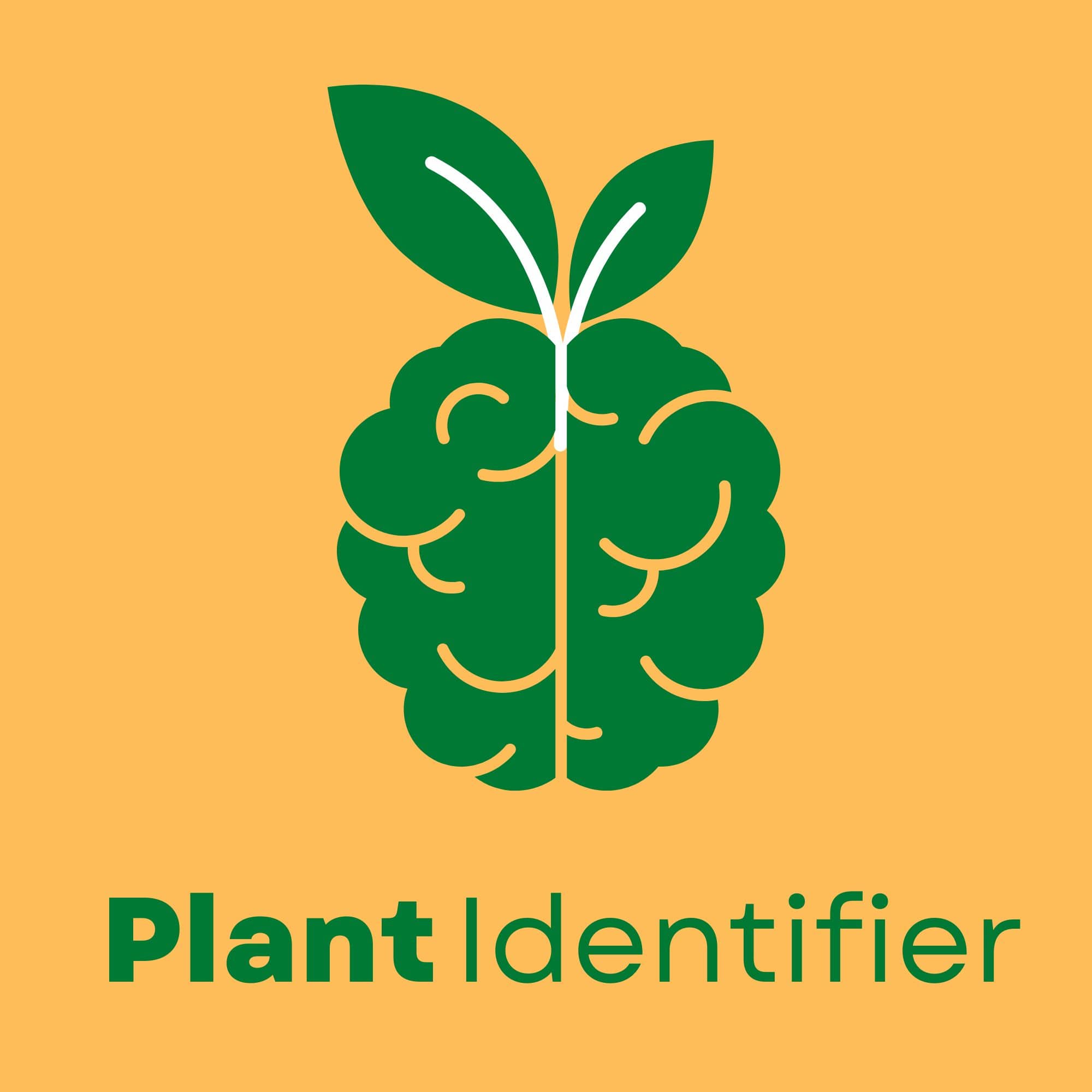
The image I used was a logo-style graphic for “Plant Identifier.”
It had:
- A green plant/brain icon
- Text below the icon
- A solid orange background
- A square image format
The logo itself was the useful part. The orange background was not.
I wanted the logo as a reusable asset that could work on different backgrounds. For example, I might want to place it on:
- A website section
- A blog featured image
- A product mockup
- A social media graphic
- A presentation slide
- A thumbnail
- A free tool preview
- A branded PDF
- A newsletter graphic
With the orange background still attached, the image would only look natural in designs that matched that same color.
That is too limiting.
What Is Creative Fabrica Studio Desktop?
Creative Fabrica Studio Desktop is a free Windows and Mac desktop app that brings the Creative Fabrica Studio AI experience to your computer.
Inside the app, creators can access different AI tools and creative utilities. Creative Fabrica also promotes supported local tools, such as background removal and image upscaling, that can run on your computer after setup.
In my case, I used the Nano Banana 2 image editing feature shown inside the desktop app.
Instead of using a traditional one-click background remover, I used a prompt-based image edit. I uploaded the logo and asked:
“remove the background so i can download it as png”
That instruction was enough for the tool to understand the goal: keep the logo and remove the solid background.
My Workflow: Removing the Logo Background With Nano Banana 2
Here is the exact workflow I followed.
Step 1: I Uploaded the Logo Image
I started with my Plant Identifier image.
The logo had a green icon and green text on an orange background. It looked clean, but the background made it less flexible for future designs.
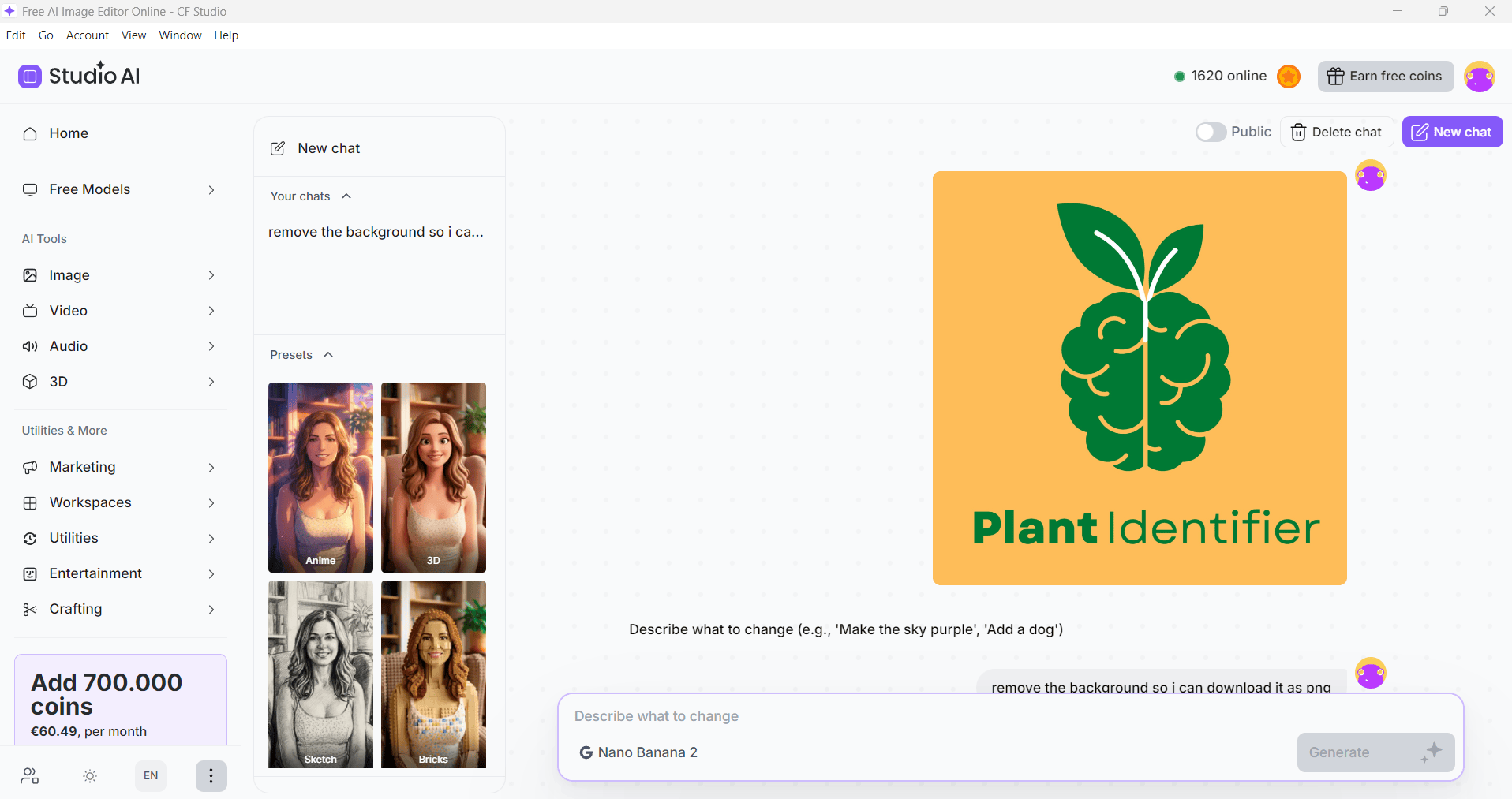
Step 2: I Opened the Nano Banana 2 Feature
Inside the Studio AI desktop app, I used the Nano Banana 2 option.
This is useful because it works as a prompt-based editor. Instead of manually selecting the background, masking edges, or opening advanced design software, I could simply describe the change I wanted.
For creators who do not want to learn complicated photo-editing tools, this is a big benefit.
You can write the instruction in plain language.
Step 3: I Asked It to Remove the Background
My prompt was simple:
“remove the background so i can download it as png”
That was not a perfect polished prompt, but it worked for the test.
A better version would be:
“Remove the orange background from this logo and keep the green icon and Plant Identifier text. Make the background transparent so I can download it as a PNG.”
That prompt is more specific because it tells the AI:
- What to remove
- What to keep
- What the final file should be used for
- That transparency matters
For logo work, being specific helps because you do not want the tool to remove small details, thin lines, letters, or parts of the design.
Step 4: I Reviewed the Transparent Result
After generating, the result showed the Plant Identifier logo on a checkerboard-style background, which represents transparency in many design tools.
This made the logo much more useful.
Now the logo can be placed on different backgrounds without the original orange square behind it.
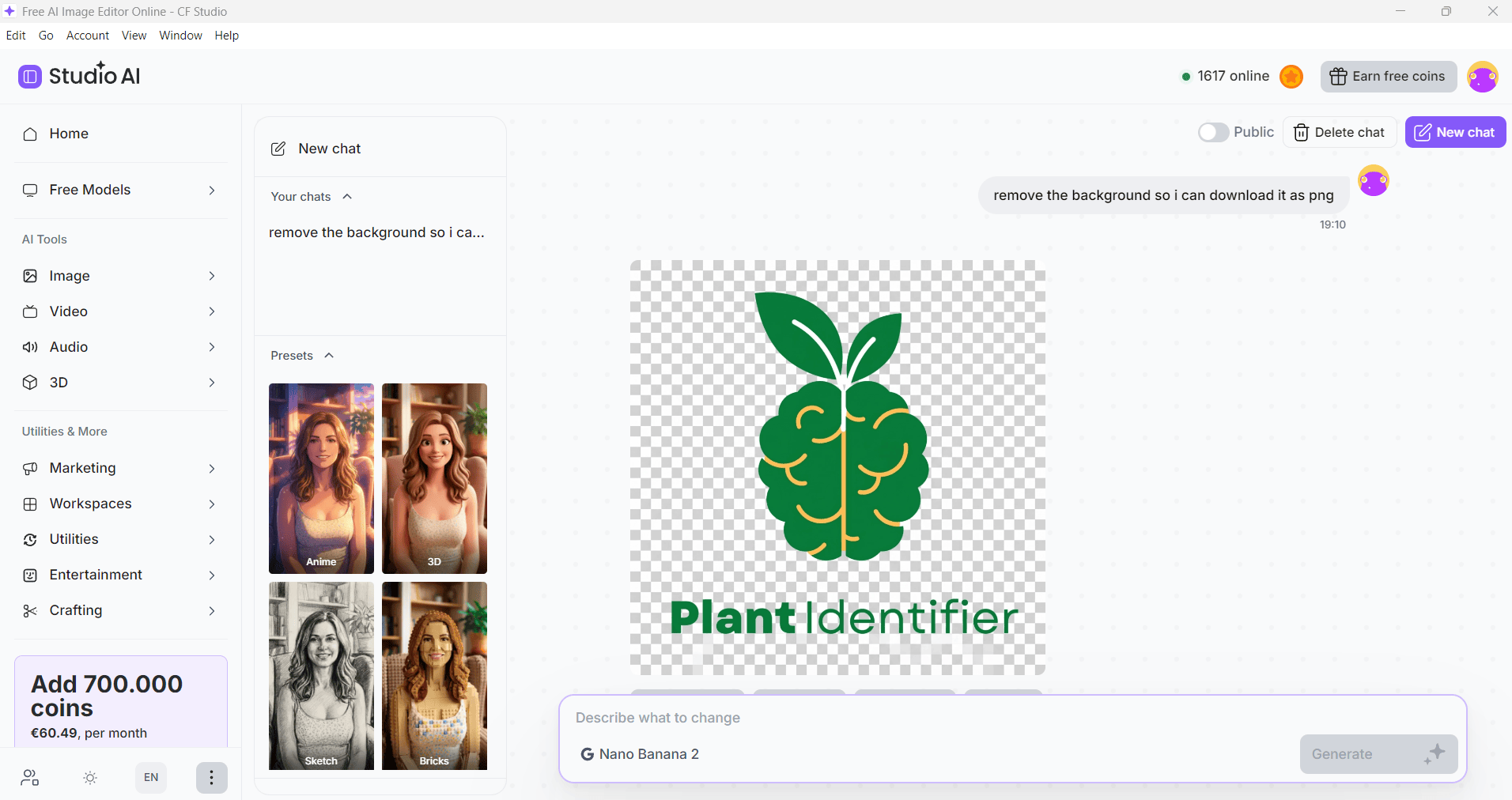
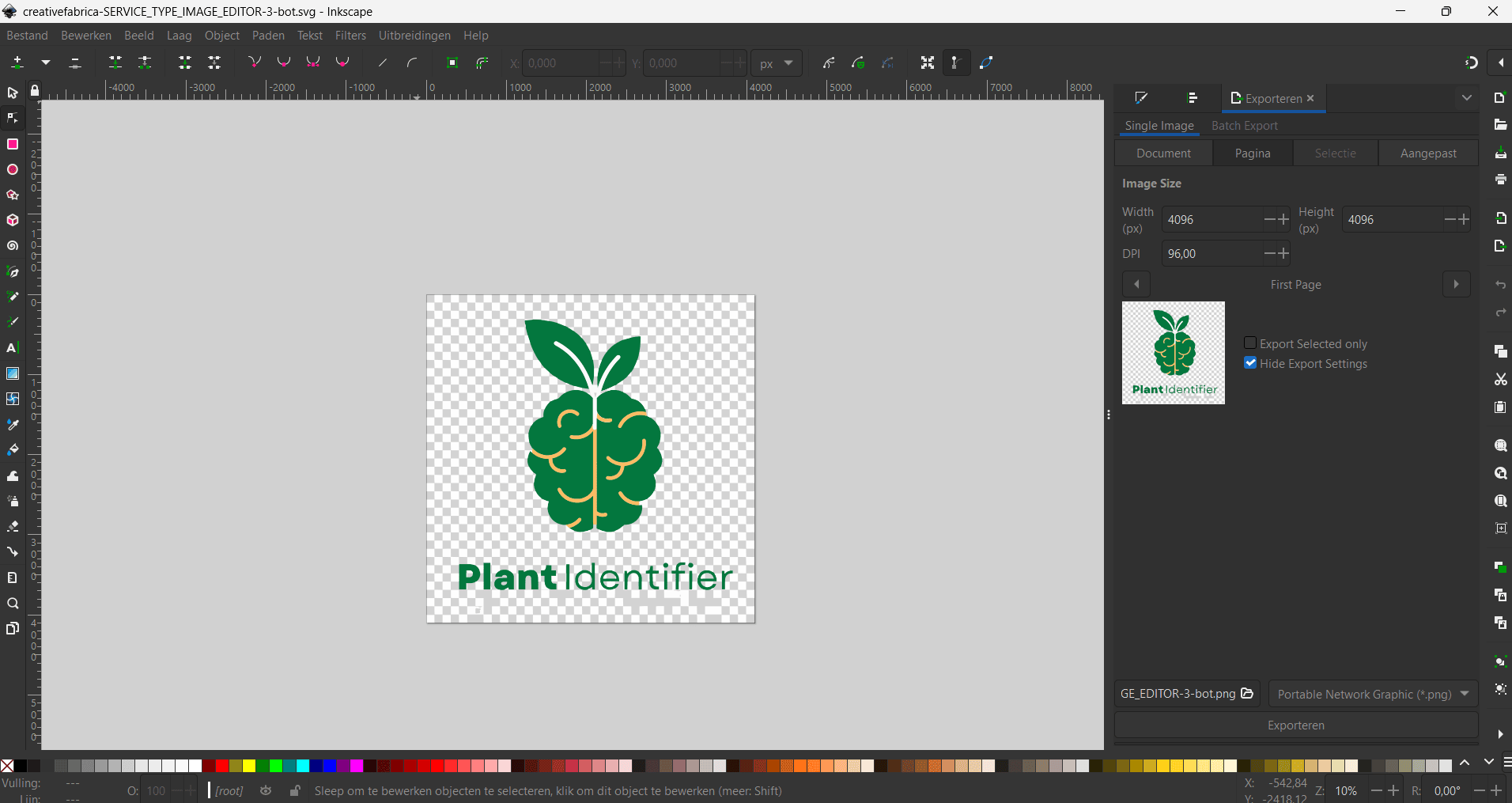
Another cool thing is that I could ask to vectorize the image. So now I can open it in InkScape and edit it however I want.
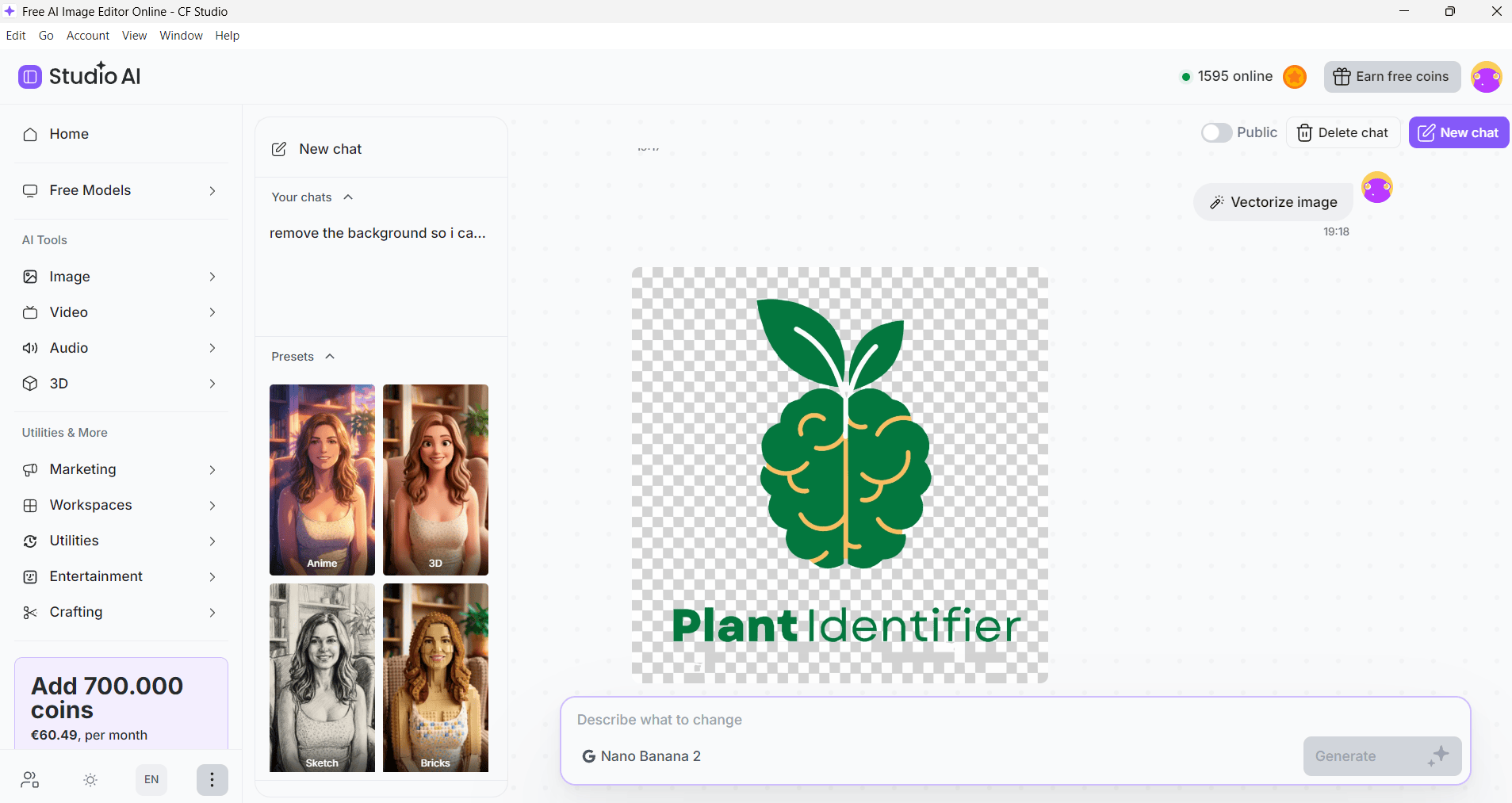
Here’s what it looks like in InkScape
Step 5: I Could Use the Logo in Other Designs
Once the background was removed, the logo became easier to use.
A transparent-style logo can be added to:
- Blog graphics
- App mockups
- YouTube thumbnails
- Website sections
- Social posts
- Presentations
- Printables
- Product previews
- Branded templates
- Download pages
That is the real value of the workflow.
The logo did not need to be redesigned. It just needed to be cleaned up so it could work in more places.
Why This Is Useful for Creators and Marketers
This kind of task may sound small, but it comes up all the time.
Creators often have image assets that are almost ready to use.
Almost.
A logo has the wrong background. A product image needs to be isolated. A design asset has extra space around it. A graphic needs to be placed into a mockup. A social media post needs a clean PNG instead of a square JPG.
Background removal helps bridge the gap between “I have the image” and “I can actually use it in my design.”
You do not always need advanced design software for these small cleanup tasks. Sometimes you just need a quick AI edit that removes the obstacle.
Why I Like Prompt-Based Editing for This Use Case
The nice thing about using Nano Banana 2 for this workflow is that I could describe the task in normal language.
I did not have to manually trace around the logo. I did not need to use layers, masks, magic wands, or advanced editing panels.
I uploaded the image and described the change.
That makes the workflow approachable for people who are not professional designers but still need clean visual assets.
It is also useful when you want to test an idea quickly.
For example, you can try:
- “Remove the background and keep only the logo.”
- “Make this logo transparent.”
- “Remove the orange background but keep the green text.”
- “Create a transparent PNG version of this logo.”
- “Clean up the background so I can place this logo on a website.”
The better your instruction, the better the chance the result matches what you want.
Tips for Getting Better Logo Background Removal Results
Here are a few things I would keep in mind after testing this workflow.
Use a clear image
The cleaner the original image, the better the result will usually be.
Avoid using a blurry screenshot if you have a higher-quality file available.
Be specific in the prompt
Instead of only saying “remove background,” say what should stay.
For example:
“Remove the orange background, but keep the green icon and Plant Identifier text unchanged.”
That reduces the chance of the AI changing parts of the logo.
Check the text carefully
Logos often contain letters, thin lines, and small details.
After background removal, zoom in and check whether the text is still correct.
Test the result on multiple backgrounds
A transparent result might look good on a checkerboard background but show edge issues on dark or light colors.
Test it on:
- White
- Black
- A brand color
- A mockup background
- The actual design you want to use
Keep the original file
Always keep the original logo image.
If the AI result removes too much, changes the edges, or affects the text, you can try again with a better prompt.
Do not use it as a replacement for proper logo files
If this is your main brand logo, you should ideally have professional source files such as SVG, PDF, EPS, or high-resolution PNG.
AI background removal is great for cleanup and quick design use. It is not the same as having a proper vector logo system.
Pros and Limitations
Pros
It is easy to use.
You can upload an image and describe what you want changed in plain language.
It works well for quick logo cleanup.
For my Plant Identifier image, the workflow helped remove the solid background and create a more reusable result.
It is useful for non-designers.
You do not need to know advanced editing software to make a background-removal request.
It fits real marketing workflows.
Clean logo assets are useful for blog graphics, landing pages, social posts, product visuals, and thumbnails.
It is available inside the Studio AI desktop experience.
You can work inside one creative environment instead of jumping between several tools.
Creative Fabrica Studio Desktop also supports creator-focused AI utilities.
The desktop app is built around practical creative tasks, including background removal, upscaling, and other visual workflows.
Limitations
The result still needs review.
Always check the edges, text, and small details before using the file publicly.
Prompt quality matters.
A vague prompt may work, but a specific prompt gives the tool better direction.
It may not replace a dedicated vector logo file.
For professional branding and print, proper logo source files are still important.
Some workflows may require internet access.
Even though Creative Fabrica promotes supported local tools, not every feature or model should be assumed to work offline. Use safe wording and check the exact feature you are using.
Local performance may depend on your computer.
When using supported local tools, speed and performance can depend on your machine.
Is This Better Than a Traditional Background Remover?
For a simple logo cleanup task, a traditional one-click background remover can be faster.
But prompt-based editing is useful when you want more control over the instruction.
For example, instead of only removing the background, you can ask the AI to:
- Keep specific parts unchanged
- Remove a certain color
- Preserve text
- Prepare a PNG-style result
- Clean up the asset for a particular use
That makes it useful for creators who want a little more direction than a one-button tool provides.
If your main goal is to remove backgrounds often, Creative Fabrica Studio Desktop is also worth exploring as a free AI image editor for desktop with multiple creator-focused tools in one place.
Final Thoughts
This was a simple but useful test.
I uploaded a Plant Identifier logo image into Creative Fabrica Studio Desktop, used the Nano Banana 2 feature, and asked it to remove the background so I could download the image as a PNG-style result.
The before-and-after difference matters because the logo is now more flexible.
Instead of being stuck on its original orange background, the logo can be placed into website graphics, blog visuals, social posts, presentations, mockups, and branded content.
For creators and marketers, that is exactly the kind of small workflow improvement that saves time.
Not every image task needs a complicated design tool. Sometimes you just need to upload an asset, describe what you want changed, check the result, and move on with the actual project.
Creative Fabrica Studio Desktop makes that kind of workflow easier to test, especially if you regularly create or clean up visual assets for your content, products, or brand.
FAQ
Can I remove a logo background in Creative Fabrica Studio Desktop?
Yes. In this workflow, I uploaded a logo image and used the Nano Banana 2 feature to ask the AI to remove the background and create a PNG-style transparent result.
What prompt did I use?
I used a simple prompt: “remove the background so i can download it as png.”
A stronger version would be: “Remove the orange background from this logo and keep the green icon and Plant Identifier text unchanged. Make the background transparent so I can download it as a PNG.”
Does Nano Banana 2 work like a normal background remover?
It works as a prompt-based image editing feature. Instead of only clicking a background remover button, you describe the change you want.
Can I use this for logos?
Yes, but check the result carefully. Logos often contain small text, thin lines, and details that should not be changed.
Can I use the result for website graphics?
Yes. A logo without the original background is easier to place inside website sections, blog images, landing pages, banners, and tool previews.
Can I use it for social media posts?
Yes. Transparent-style logo assets are useful for Instagram posts, LinkedIn graphics, Pinterest pins, YouTube thumbnails, and other branded visuals.
Can I use it for Etsy or product mockups?
Yes. Removing a logo background can help when creating shop graphics, product previews, packaging inserts, stickers, or branded mockups.
Does it create a transparent PNG?
The workflow produced a result shown on a checkerboard-style background, which usually represents transparency. Before publishing or uploading elsewhere, download the file and test it in your design tool to confirm transparency behaves as expected.
Is it a replacement for professional logo files?
No. For serious brand work, you should still keep proper logo files such as SVG, PDF, EPS, or high-resolution transparent PNG. This workflow is best for quick cleanup and practical design use.
Other Interesting Articles
- AI LinkedIn Post Generator
- Gardening YouTube Video Idea Examples
- AI Agents for Gardening Companies
- Top AI Art Styles
- Pest Control YouTube Video Idea Examples
- Automotive Social Media Content Ideas
- Plumber YouTube Video Idea Examples
- AI Agents for Pest Control Companies
- Electrician YouTube Video Idea Examples
- How Pest Control Companies Can Get More Leads
- AI Google Ads for Home Services
- 60-Second Training Videos Are the New Corporate Standard
- Cybersecurity PR Pricing: Retainers, Deliverables & ROI
- Best AI Tools for Product Consistency in E-Commerce Video
Master the Art of Video Marketing
AI-Powered Tools to Ideate, Optimize, and Amplify!
- Spark Creativity: Unleash the most effective video ideas, scripts, and engaging hooks with our AI Generators.
- Optimize Instantly: Elevate your YouTube presence by optimizing video Titles, Descriptions, and Tags in seconds.
- Amplify Your Reach: Effortlessly craft social media, email, and ad copy to maximize your video’s impact.