
How to Use Infinite Zoom Images in Your Content Marketing

An infinite zoom appears to push endlessly into an image, or pull endlessly out of one, revealing a new scene at each level. The effect looks like a visual trick, but it depends on a simple sequencing decision: what you show first, what you hold back, and where the viewer lands.
That makes infinite zoom a practical addition to the visual storytelling techniques many teams already use. In Wyzowl’s 2026 survey, 91% of businesses said they use video as a marketing tool, while social media video was the most common type produced. Short zoom sequences fit that mix because they’re suited to feeds and can be adapted for several channels.
Key Takeaways
- Treat the zoom as structure, not decoration. Each level should reveal something the previous one concealed.
- Plan three to six beats. Storyboard the opening, the main reveal, and an ending that can return to the first frame.
- Choose a suitable production method. Use template keyframes for speed, AI outpainting for added levels, or motion graphics for greater control.
- Export for each channel. Use vertical video for Shorts and Reels, and MP4 or WebM instead of GIF for web pages.
- Account for accessibility. Avoid strobing patterns, keep text legible during movement, and provide a useful text alternative.
Chapters
Why the Technique Earns Attention

Zooming creates a reveal, a sense of movement, and an open question about what comes next. That combination can hold attention during the first few seconds of a feed video, provided the sequence reaches its point quickly.
Useful applications include:
- Product reveals. Start with a stitch, component, or texture, then pull back to show the finished product.
- Location stories. Move from a street-level detail to a neighborhood, city, and map. This approach can support an event or expansion announcement.
- Data in context. Open with one number, then reveal the larger chart, market, or customer outcome behind it.
When to Skip It
Zoom motion competes with reading. If the main message is a specification list, price, or detailed chart, a static frame will usually communicate it faster.
Avoid the effect when busy source art makes the reveal difficult to follow, when the pattern could flash or strobe, or when an autoplay placement gives viewers no way to stop the movement. Continuous motion can cause discomfort for some people, so provide a still fallback and a pause control where the platform supports one.
Plan the Loop Before Opening a Tool
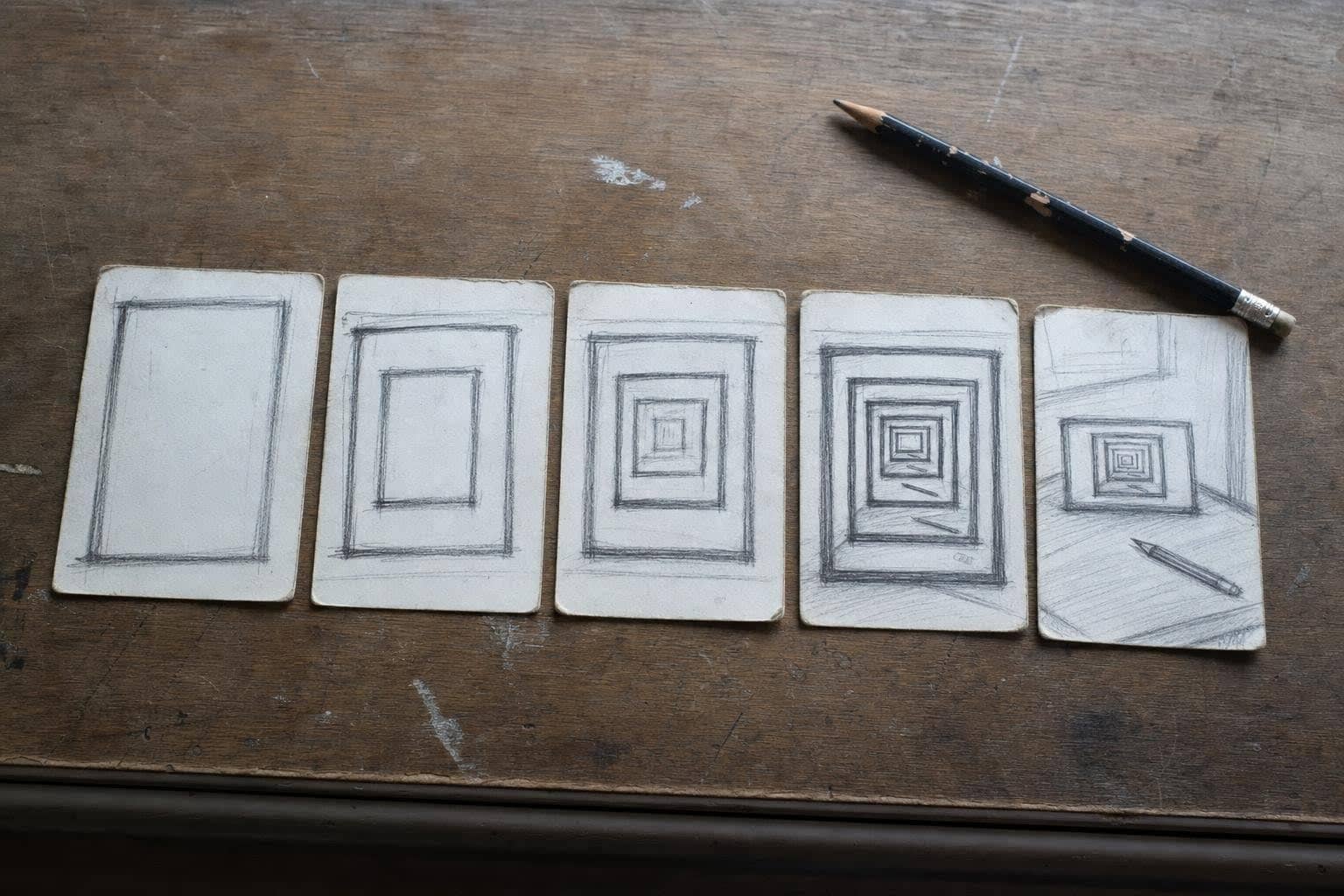
Outline the sequence on paper or index cards. Three to six beats are usually enough:
- Beat 1: Choose a clear opening frame that can work as a thumbnail on its own.
- Beats 2 to 4: Reveal one new idea at each level rather than introducing several competing details.
- Final beat: Show the main brand, product, or message, then frame it so the sequence can return to the opening image.
Mark where captions will appear and decide what should happen after the reveal. Although longer videos can work for tutorials and explainers, an infinite zoom used as a feed hook is often more effective at about six to fifteen seconds. A clean loop can make that short sequence feel continuous without delaying the payoff.
Getting Source Images Without a Shoot
You don’t need custom artwork to test the format. Images with a strong sense of depth, such as tunnels, spirals, landscapes, or layered geometry, can create convincing movement with limited cleanup.
One option is to browse a gallery of Infinite Zoom images and sort by orientation so the source material suits vertical or landscape channels. StockCake states that its AI images are available under CC0. Before using an image in client-facing work, read the license page on StockCake, or on any other library you use, and confirm that the terms fit the project.
Three Ways to Produce It
Path A: Template Keyframes
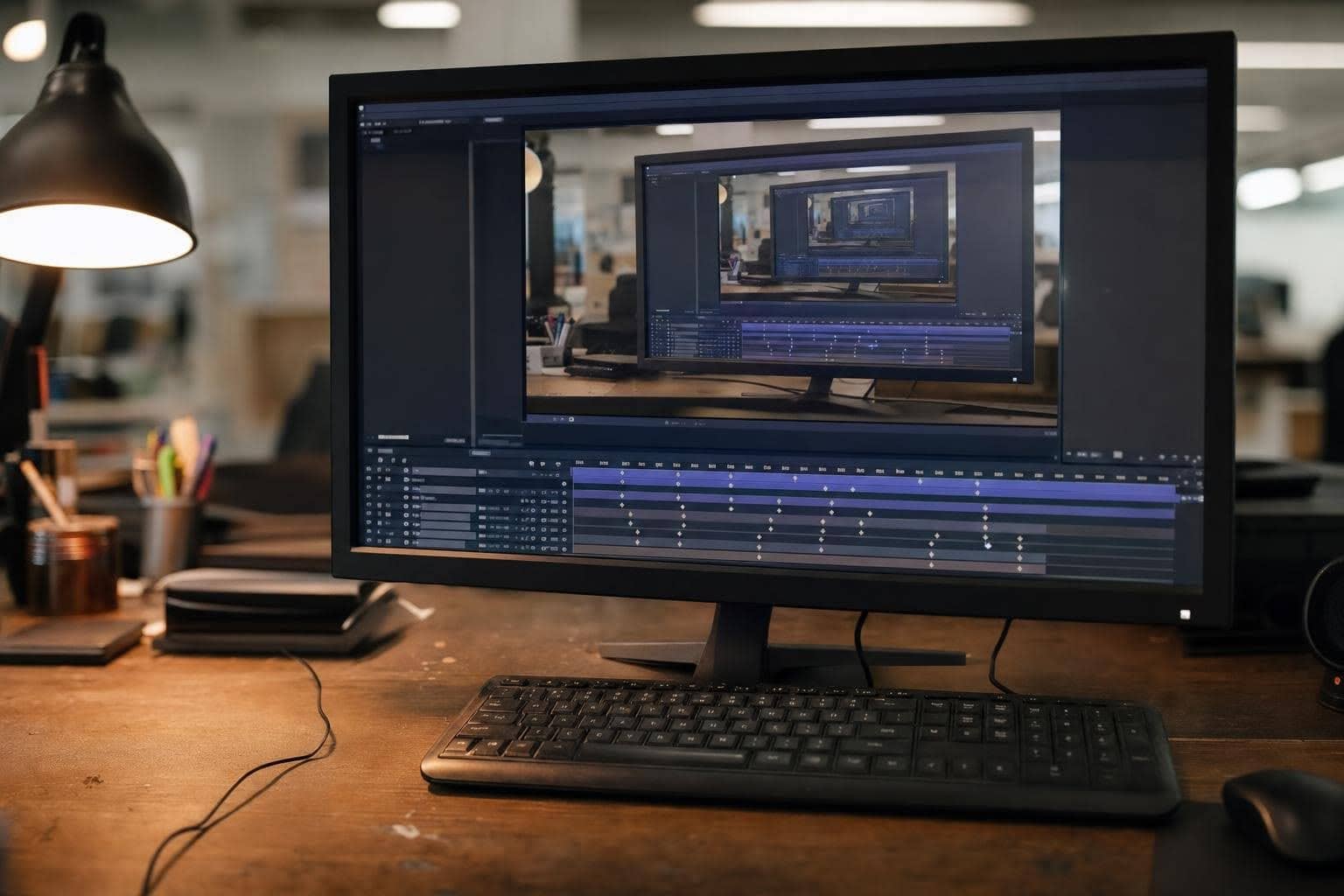
For a simple version, import a high-resolution still or prepared image sequence into an editor such as CapCut or Canva. Add scale and position keyframes at the beginning and end. Apply easing so the movement accelerates and settles rather than continuing at one mechanical speed. Export a 1080 × 1920 vertical version for Shorts and Reels, then create a square or landscape version for other feed placements.
Path B: AI Outpainting
Outpainting expands an image beyond its original borders, giving each zoom level more content to reveal. Photoshop offers Generative Expand for enlarging the canvas and filling the new area. Midjourney includes a Zoom Out feature, while ChatGPT Images can edit and extend existing compositions.
Whichever tool you use, keep the subject, lighting, perspective, and style description consistent between passes. Generate wider frames in stages, arrange them from close-up to wide view, and inspect the transition between each layer. Plan time to correct warped objects, repeated details, and visible seams before animating the sequence.

Path C: Motion Graphics
In After Effects, animate scale and position across stacked layers or move a 3D camera through them. Use easing and restrained motion blur to make the movement feel natural. For complex sequences, group related layers into precompositions so each reveal remains easier to adjust.
Export by Channel
Match the export to the placement rather than using one file everywhere. A six-to-fifteen-second vertical loop suits Shorts and Reels, while square video often provides more flexibility in mixed social feeds. Keep important text and details away from interface elements that may cover the edges of a vertical video.
For web pages, use HTML5 video in MP4 or WebM format instead of an animated GIF. Video files generally provide better image quality at a smaller size. Add a poster image, mute looping background clips, and remove the audio track when there is nothing to hear. In FFmpeg, the -an flag removes audio and can reduce file size. For email, use a still thumbnail linked to a hosted video rather than relying on inconsistent inline video support.
Accessibility, Performance, and Measurement
For a still thumbnail or fallback image, describe the outcome rather than naming the effect. For example, write “the view pulls back from a single seed to a full orchard” instead of “zoom animation.” Caption spoken narration and important on-screen information. Keep text in a stable area where scaling artwork won’t overlap it, and avoid rapid flashing or high-contrast strobing.
Measure the result according to the channel. On Shorts and Reels, review completion rate and replays. In social feeds, compare early retention and click-through rate with your usual static posts. On your own site, confirm that the video doesn’t slow page loading or responsiveness. Test the opening frame and loop timing separately, since either can affect whether viewers continue watching.
Common Pitfalls
Common problems include sequences that continue after the reveal has landed, mismatched styles between outpainted layers, oversized GIFs, unreadable captions, and unverified licensing assumptions. Whether you use StockCake or another image library, check the terms on the source page for the specific asset rather than relying only on a summary elsewhere.
For a repeatable workflow, choose one concept, storyboard about five beats, and produce the sequence with keyframes, outpainting, or motion graphics. Export short vertical and square versions as MP4 or WebM, add captions and a clear closing frame, then compare completion and click-through rates with your usual content. A plan for brand-consistent AI visuals can help keep outpainted layers aligned.
A Technique, Not a Gimmick
Infinite zoom can hold attention because it withholds information and then provides a clear payoff. Current tools make the effect easier to produce, but the main creative decision remains the same: choosing what the viewer should discover at each level and what deserves to be revealed last.
Other Interesting Articles
- AI LinkedIn Post Generator
- Gardening YouTube Video Idea Examples
- AI Agents for Gardening Companies
- Top AI Art Styles
- Pest Control YouTube Video Idea Examples
- Automotive Social Media Content Ideas
- Plumber YouTube Video Idea Examples
- AI Agents for Pest Control Companies
- Electrician YouTube Video Idea Examples
- How Pest Control Companies Can Get More Leads
- AI Google Ads for Home Services
- 60-Second Training Videos Are the New Corporate Standard
- Cybersecurity PR Pricing: Retainers, Deliverables & ROI
- Best AI Tools for Product Consistency in E-Commerce Video
Master the Art of Video Marketing
AI-Powered Tools to Ideate, Optimize, and Amplify!
- Spark Creativity: Unleash the most effective video ideas, scripts, and engaging hooks with our AI Generators.
- Optimize Instantly: Elevate your YouTube presence by optimizing video Titles, Descriptions, and Tags in seconds.
- Amplify Your Reach: Effortlessly craft social media, email, and ad copy to maximize your video’s impact.